
Now Reading: Mastering AI-Driven Cloud Design: A Guide to Visual Paradigm’s Cloud Architecture Studio
-
01
Mastering AI-Driven Cloud Design: A Guide to Visual Paradigm’s Cloud Architecture Studio


Mastering AI-Driven Cloud Design: A Guide to Visual Paradigm’s Cloud Architecture Studio
Introduction
In the fast-paced world of cloud engineering, the process of translating high-level ideas into precise, production-ready diagrams can be time-consuming. Visual Paradigm, a leading software modeling and design tool, has enhanced its capabilities by integrating advanced AI into its Cloud Architecture Studio.
This AI-powered tool revolutionizes the design process by instantly transforming plain English descriptions into professional, standardized cloud architecture diagrams compatible with major providers like AWS, Microsoft Azure, and Google Cloud. Whether you are an individual engineer, an architecture team lead, or a developing organization, this guide explores how Visual Paradigm streamlines workflow, ensures accuracy, and generates comprehensive documentation.
Key Concepts
1. Automated Diagram Generation
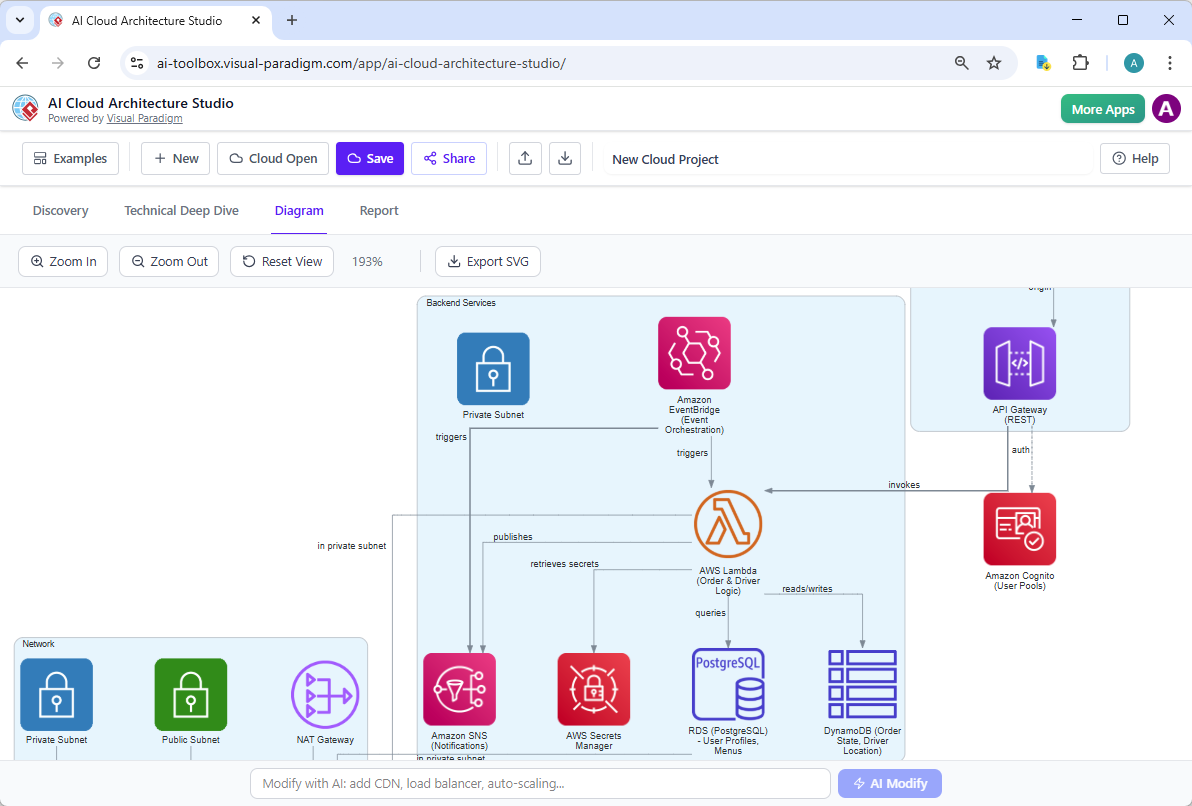
The core function of the Cloud Architecture Studio is to remove the need for manual sketching or complex Storylines configuration for simple layouts. Users input a conceptual description, and the AI instantly renders a professional diagram complete with standardized icons, layouts (including hierarchical views), and connection lines.
2. Interactive Refinement
Unlike static design tools where a single mistake requires re-drawing, the AI Studio allows for real-time adjustments. Users can:
-
Click to Adjust: Select individual components in the diagram to trigger AI suggestions or manual edits.
-
AI-Assisted Modification: Ask the AI to “modify the diagram for me” based on specific feedback.
-
Side-by-Side Comparison: The tool provides a visual comparison between the original generation and the updated version, ensuring transparency in decision-making.
3. Dynamic Questioning and Clarification
Before generating a final architecture, the tool employs an interactive “analyze” phase. If requirements are ambiguous, the AI generates follow-up questions to clarify needs. Users can answer these directly or rely on the AI’s suggestions to scaffold a robust architectural foundation before rendering.
4. Comprehensive Documentation
The tool extends beyond visual diagrams. It includes a built-in Report Tab that:
-
Generates reports in Markdown format based on the generated architecture.
-
Allows for direct editing of the content within the browser.
-
Exports the final documentation as PDFs, creating a complete asset package (Diagram + Documentation).
Step-by-Step Workflow Guide
The following workflow outlines how users can leverage the AI Cloud Architecture Studio, from conceptualization to deployment.
Phase 1: Initialization & Project Setup
-
Log In: Access your Visual Paradigm Online Workspace.
-
Initiate: Click “Create with AI” and select “Browse AI apps.”
-
Launch: Locate the AI Cloud Architecture Studio app and click “Start Now.”
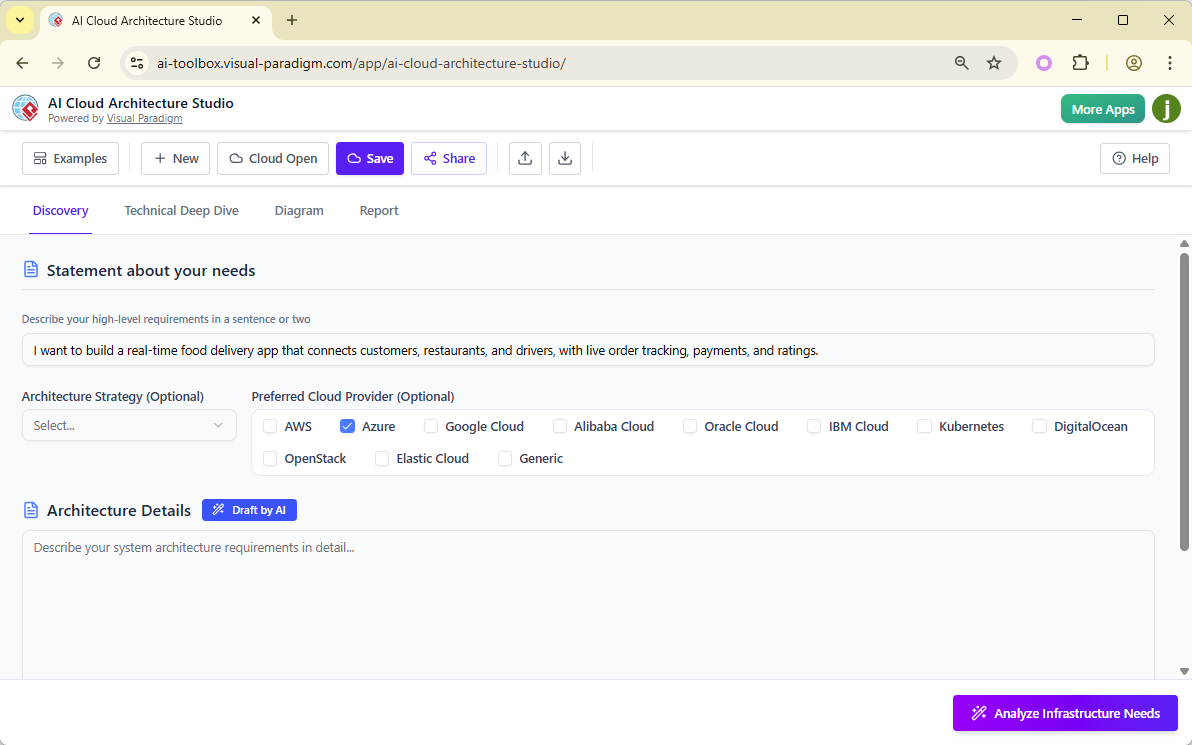
Phase 2: Description & Strategy (The Input)
Open the main interface to construct your project’s foundation:
-
Project Name: Assign a descriptive title to your architecture project.
-
High-Level Statement: Provide a concise summary of the architecture you intend to build.
-
Cloud Providers: Specify the preferred clouds (e.g., AWS, Azure, GCP) or select “Cloud Agnostic” for generic designs.
-
Architecture Strategy: Define the strategic approach (e.g., Utility, Optimized, Simplicity).
-
Detailed Requirements:
-
Manual Input: Type specific functional and non-functional requirements.
-
AI-Assisted Draft: Click to let the AI draft an initial version, refining it until it matches your vision.
-
Phase 3: Analysis & Clarification
Click “Analyze Infrastructure Needs.”
-
The AI will scan your inputs and present a set of clarifying questions.
-
Engage in a dialogue: Answer questions manually or accept AI suggestions to quickly build a comprehensive schema.
Phase 4: Generation & Iteration
Once requirements are clear, click “Generate Cloud Architectures.”
-
Review: Examine the generated diagram.
-
Optimize:
-
Use the zoom function to inspect details.
-
Click components to adjust manually or prompt the AI to update the diagram.
-
Observe the side-by-side view to compare changes instantly.
-
-
Finalize: When satisfied, click Accept to lock in the design.
Phase 5: Export & Documentation
The workflow concludes with creating a distributable package:
-
Diagram Export: Save the final diagram as an SVG file for use in presentations and documents.
-
Report Export: Navigate to the Report Tab to edit the markdown-generated documentation, then export as a PDF.
-
Project Management:
-
Save: The project is automatically saved to your online workspace for future revision.
-
Local Backup: Export the project as a JSON file for local storage or integration with other tooling ecosystems.
-
Best Practices & Guidelines
To maximize the efficiency and accuracy of the AI Cloud Architecture Studio, adhere to the following guidelines:
1. Input Quality Correlates with Output
The AI excels when provided with clear, structured inputs.
-
Be Specific: Avoid vague terms like “set up a server.” Instead, specify “Provision an Azure Firewall at the network level with DDoS protection.”
-
Define Scope: Clearly delineate which cloud providers are in scope to prevent unwanted noise in the diagram generation.
2. Leverage the Interactive “Ask” Feature
Do not hesitate to interact with the AI during the refinement phase. If a component looks incorrect or a topology doesn’t match your standards:
-
Describes the desired change in plain English (e.g., “Add a secondary database cluster for redundancy”).
-
Relies on the AI to resolve the schematic change immediately, saving significant manual redesign time.
3. Validate Before Dependent Use
While the AI generates professional diagrams, always treat generated components as starting points.
-
Cross-check cloud provider terminology.
-
Ensure compliance with your organization’s security policies during the review of the generated architecture.
-
Use the side-by-side comparison feature before committing to major architectural shifts to ensure logical consistency.
4. Integration and Workflow Automation
For sophisticated teams looking to integrate this into DevOps or CI/CD pipelines:
-
Utilize the JSON export function to feed architecture schemas into automated configuration generators (e.g., Terraform scripts).
-
Leverage the Markdown reports to auto-generate Wiki entries or Confluence pages during project onboarding.
5. Version Control via the Workspace
Since the entire project is saved within the Visual Paradigm Online Workspace:
-
Rely on the platform’s version history to revert to previous generations of your architecture if a later update introduces unexpected issues.
-
Use the cloud-based nature of the tool to collaborate with distributed teams who can browse applications or refine requirements simultaneously.
Conclusion
The Visual Paradigm AI Cloud Architecture Studio represents a significant shift in how cloud architects conceptualize and design systems. By automating the translation of ideas into visual models and providing robust, interactive refinement tools, it empowers teams to produce high-quality, documented architectures for AWS, Azure, and Google Cloud in a fraction of the traditional time. Whether used for rapid prototyping or comprehensive project documentation, adhering to a structured workflow ensures that the resulting designs are both visually precise and technically sound.
Reference List
- AWS Architecture Diagram Tool: AWS-Ready Diagrams & Components: Introduces specialized components and templates designed for building accurate AWS architecture diagrams directly within the Visual Paradigm platform.
- Comprehensive TOGAF ADM Tutorial: A Step-by-Step Guide: Provides a detailed walkthrough of the Architecture Development Method, guiding users through establishing frameworks and managing architecture lifecycles.
- AWS Architecture Diagram Tool: Features & Usage: Details the specific features of the cloud diagramming tool, including pre-built AWS shapes and cloud-specific configuration options.
- Production Version of AWS Architecture Diagram Tool: Highlights the professional capabilities of the tool for enterprise-grade architectural modeling and documentation.
- Solutions Overview: Free AWS Architecture Diagram Tool: Offers an overview of the available solutions and provides access to the tool for creating cloud architecture diagrams efficiently.
- French Language Solution: Free AWS Architecture Diagram Tool: Provides French-language resources and access to the cloud diagramming solutions, catering to international users.
- Updates Release: AI Cloud Architecture Studio Launch: Announces the latest release of the AI-driven studio capable of generating and refining cloud architecture designs automatically.
- Revolutionizing Cloud Design: A Deep Dive by Cybermedian: An external analysis discussing how Visual Paradigm’s new AI studio is transforming the speed and accuracy of cloud design processes.
- YouTube Video: AI Cloud Architecture Studio Overview: A video tutorial demonstrating the launch and core functionalities of the AI Cloud Architecture Studio.
- YouTube Video: AI Cloud Architecture Studio: Generating and Refining: A detailed video explanation of how the AI tool assists in generating diagrams, refining designs, and exporting reports.
- YouTube Video: Discover How AI Cloud Architecture Studio Works: A supplementary video guide exploring the capabilities of the AI studio in cloud architecture generation and documentation.
- Guide: Cloud Services Architecture & AWS: Provides an educational overview of cloud services architecture, specifically focusing on AWS implementation strategies and design principles.