
Mastering Dynamic PlantUML Diagrams with VPasCode: Functions, Variables, and Workflow Optimization
Diagramming as Code (DaC) has revolutionized how technical teams document software architecture. By treating diagrams as text files, developers can version control their designs, automate updates, and generate documentation dynamically. VPasCode, the browser-based diagramming tool by Visual Paradigm, takes this concept further by integrating AI-assisted editing and live preview capabilities.
This tutorial explores the advanced features of VPasCode, focusing on how to use custom functions, built-in variables, and workflow optimizations to create resilient, reusable, and “living” diagrams.
1. Advanced Features: Custom Functions and Built-ins
One of the most powerful aspects of PlantUML within VPasCode is the ability to write custom logic directly inside the diagram code. This allows you to perform calculations or string manipulations and return results directly into diagram labels, making your diagrams smarter and more dynamic.
Custom Functions (!function)
Custom functions allow you to encapsulate logic. For example, if you frequently need to display file sizes, you can define a function once and reuse it throughout your diagram.
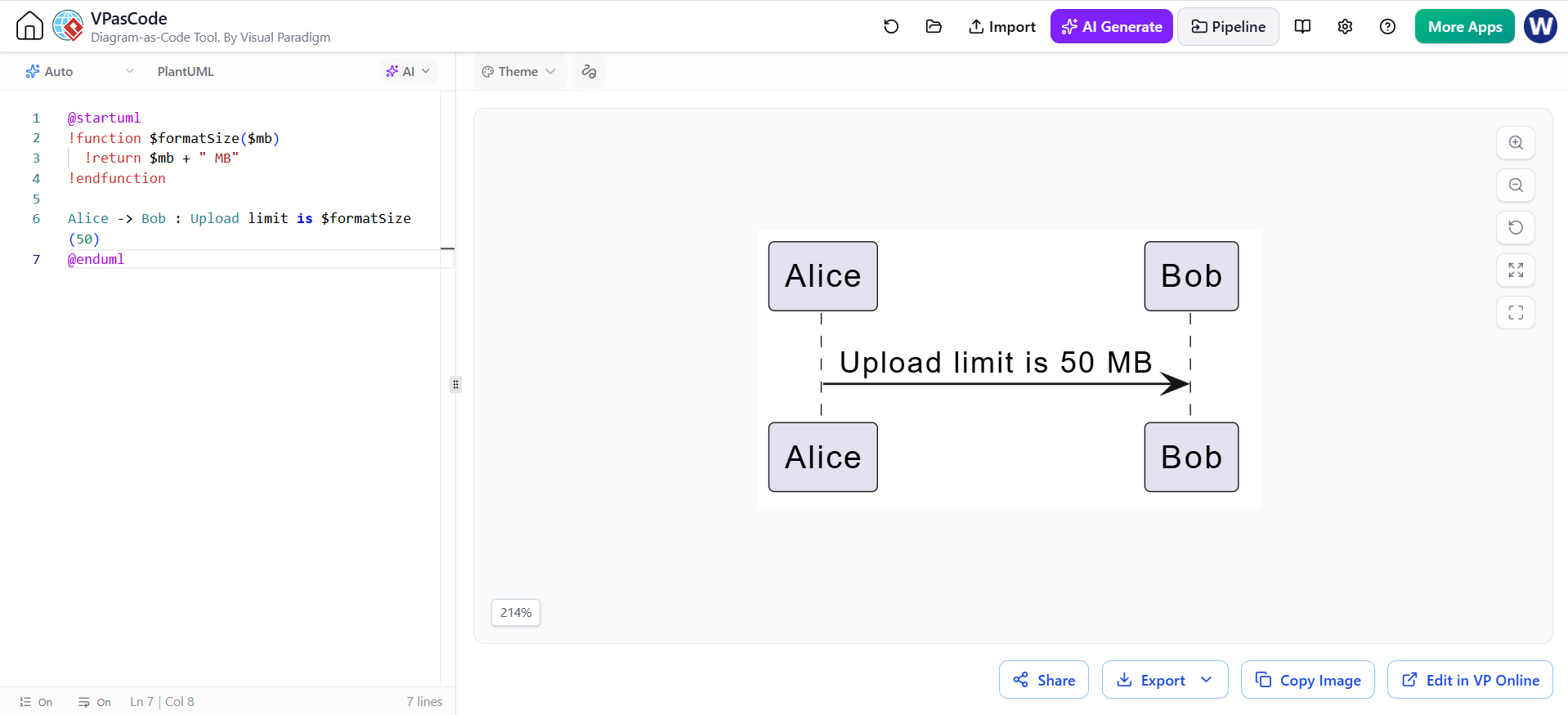
Consider the following scenario where we define a function to format a numerical value into a human-readable “MB” string:
@startuml
!function $formatSize($mb)
  !return $mb + " MB"
!endfunction

Alice -> Bob : Upload limit is $formatSize(50)
@enduml
In this snippet:
- !function $formatSize($mb): Defines a new function named $formatSize that accepts a parameter $mb.
- !return $mb + ” MB”: The function logic simply appends ” MB” to the input number.
- Alice -> Bob : Upload limit is $formatSize(50): The function is invoked directly within the sequence diagram message. The diagram engine evaluates the function and renders the text as “Upload limit is 50 MB”.
Useful Built-in Functions
Beyond custom functions, VPasCode provides several built-in functions that enhance debugging and conditional formatting:
- %variableexists(“$varName”): Use this to check if a specific variable is defined before using it. This prevents runtime errors when referencing optional configuration variables.
- %getvariablevalue(“$varName”): Retrieves a variable’s value dynamically. This is particularly useful for debugging complex diagrams where you need to inspect the state of variables.
- %strlen(“$text”): Returns the length of a string. You can use this for conditional formatting logic, such as truncating long labels or adjusting box sizes based on text length.
2. Optimizing Your Workflow in VPasCode
VPasCode is designed to streamline the variable-driven development experience. Unlike traditional static diagram tools, it offers specific features that enhance productivity.
Live Preview & Error Detection
The “Instant Feedback” loop is crucial for DaC. When you modify a variable’s value in the editor pane, the diagram on the right re-renders instantly. This allows you to see the impact of configuration changes in real-time.
If you encounter syntax errors, such as missing the $ prefix for variables or creating scope errors, the AI Code Fixer is an invaluable tool. Located in the toolbar, the AI Code Fixer button analyzes your preprocessor logic and suggests automatic corrections, significantly reducing debugging time.
Modular Design with Includes
While VPasCode is browser-based, you can simulate modularity to keep your code organized. Although local workflows might use !include files, within VPasCode, the recommended approach is to organize shared variables and functions at the top of your script. This creates a clean “header” section that is easily accessible and reusable across different diagrams.
Exporting for Documentation
Once your dynamic diagram is finalized, VPasCode offers flexible export options tailored to different documentation needs:
- SVG (Scalable Vector Graphics): The best choice for technical documentation where scalability and text-searchability are required. SVGs remain crisp at any zoom level and are ideal for embedding in technical specifications.
- PNG (Portable Network Graphics): Ideal for quick sharing in Slack, Teams, or email communications. PNGs are raster images that are easy to view but do not support text selection.
3. Best Practices for Maintainable Code
To ensure your diagrams remain maintainable as your project grows, follow these coding standards:
- Naming Conventions: Use camelCase or snakecase consistently for your variables. For example, use
$dbNameor$db_nameto make your code readable and predictable. - Default Values: Always use the
?=syntax for variables that might be overridden in different environments (e.g., Dev vs. Prod). This ensures your diagram renders correctly even if a specific variable is missing. - Commenting: Add comments above variable blocks to explain their purpose. This is especially critical for JSON configurations where the structure might not be immediately obvious.
- Keep Logic Simple: While PlantUML supports loops and conditionals, overly complex logic can make diagrams hard to read. Use variables for configuration (e.g., colors, sizes, labels), not for building entire application logic.
Conclusion
By mastering variables and preprocessor directives in PlantUML, you transform your diagrams from static images into living documentation. Using VPasCode streamlines this process with its AI-enhanced editing and live preview capabilities, allowing you to focus on architecture rather than syntax. Start experimenting with conditional assignments and custom functions today to build more resilient and reusable diagram templates.