
Mastering UML Sequence Diagrams: A Visual Paradigm Architect’s Guide to System Interactions
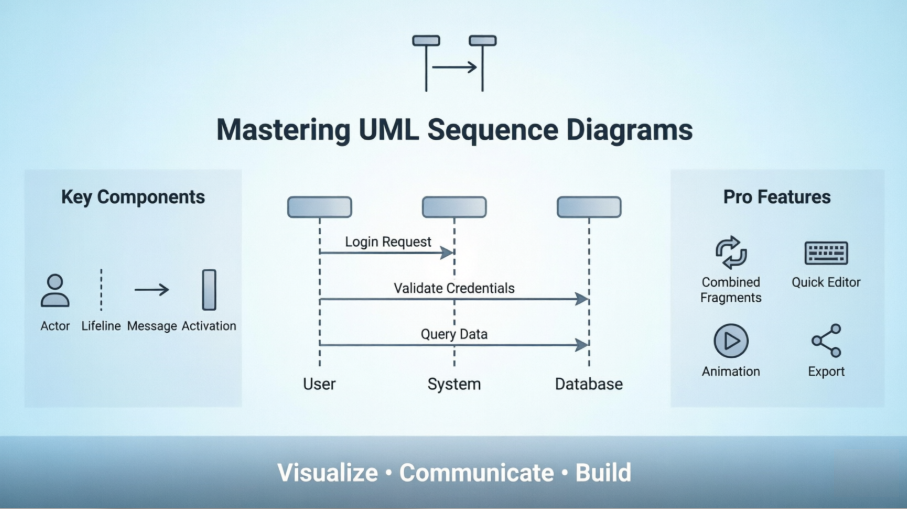
In the intricate ecosystem of modern software development, where microservices and distributed systems reign supreme, communication is the most critical currency. As a technical architect who has navigated the complexities of enterprise modeling, I have found that UML Sequence Diagrams remain the most powerful tool for visualizing the “who does what” and “when” of a system’s behavior.
This guide serves as a practitioner’s walkthrough for mastering UML Sequence Diagrams using Visual Paradigm. Whether you are a business analyst documenting user journeys or a developer clarifying API contracts, this tutorial will demonstrate how to create, manage, and animate sequence diagrams that stay relevant as your requirements evolve.
The Foundation: Understanding the Anatomy of a Sequence Diagram
A UML Sequence Diagram is an interaction diagram that details how operations are carried out. It captures the interaction between objects in the context of a collaboration. Unlike a static class diagram, a sequence diagram is temporal—it depicts the sequence of messages exchanged between objects over time.
Visually, the diagram is constructed around two primary elements:
- Lifelines (Vertical Lines): These represent objects, actors, or processes that exist simultaneously. In the context of a login scenario, you might have lifelines for the User, the System, and the Database.
- Messages (Horizontal Arrows): These represent the communication between lifelines. They are ordered from top to bottom, illustrating the chronological flow of execution.
By specifying simple runtime scenarios in a graphical manner, architects can avoid the common pitfall of “diagram sprawl”—where too much detail overwhelms the core narrative. The best practice is to start with high-level system sequence diagrams before drilling down into object-level interactions.
Step-by-Step: Modeling a User Login Interaction in Visual Paradigm
Visual Paradigm offers a robust environment for constructing these diagrams. Below is a walkthrough of modeling a standard Login Request flow, moving from the User to the System and finally to the Database.
Step 1: Defining the Actors and Lifelines
First, you must establish the participants in the scenario. In Visual Paradigm, you drag and drop objects from the palette onto the diagram canvas.
- Create the Actor: Drag an “Actor” shape onto the diagram. Label this
User. This represents the external entity initiating the action. - Create the System: Add a “Boundary” or “System” object to represent the application’s entry point. Label this
System. - Create the Data Source: Add a “Database” or “Entity” object to represent the backend storage. Label this
Database.
Step 2: Mapping the Interaction Flow
Once the lifelines are vertical and parallel, we begin the sequence of messages. Visual Paradigm allows you to draw these messages intuitively.
- Login Request: Draw a solid arrow from
UsertoSystem. Label itLoginRequest(username, password). This is the initial trigger. - Validate Credentials: Draw a solid arrow from
SystemtoDatabase. Label itValidateCreds(username, password). This represents the system querying the backend. - Query Data: Draw a solid arrow from
Databaseback toSystem. Label itReturnCredentials. This indicates the database is responding with the result.
The “Activation Bar” (the thin rectangle on the lifeline) will automatically appear in Visual Paradigm when you place a message, visually indicating that the object is currently performing an action.
Step 3: Visualizing the Logic (Combined Fragments)
Real-world logic often involves alternatives. For instance, what if the password is wrong? In Visual Paradigm, you can use Combined Fragments to encapsulate these logic blocks.
Imagine a scenario where the system must decide whether to grant access or reject it. You would draw a frame around the validation logic and apply an alt (alternative) fragment.
@startuml
actor User
box "User"
User -> System : Login Request
end box

box "System"
System -> Database : Validate Credentials
Database --> System : Query Data

alt Success
  System --> User : Access Granted
else Failure
  System --> User : Access Denied
end
@enduml
Advanced Capabilities: Animation and Export
Visual Paradigm goes beyond static drawing. One of its most potent features is the ability to animate your diagrams. This is invaluable during team meetings to demonstrate the flow of data without needing a whiteboard.
- Animation: You can play through the sequence to see messages light up in real-time, ensuring the timing and logic are sound before coding begins.
- Quick Editor: For rapid prototyping, Visual Paradigm offers a Quick Editor where you can type sequence definitions directly as text, which is then rendered into the graphical diagram automatically.
- Export: Once the diagram is finalized, it can be exported to various formats (PDF, Image, HTML) for inclusion in technical documentation or API contracts.
Conclusion
By mastering UML Sequence Diagrams in Visual Paradigm, you are not just drawing pictures; you are modeling the very heartbeat of your software architecture. This practice ensures that your team remains aligned, requirements are clear, and the path from design to implementation is seamless.