From Sketch to Spec: Excalidraw in VP OpenDocs
In the rapidly evolving landscape of software development, the gap between the chaotic creativity of brainstorming and the rigid discipline of formal documentation has historically been a source of friction. Teams often find themselves toggling between standalone whiteboard tools and sophisticated project management suites, resulting in “context switching” that drains productivity and creates version control nightmares.
Visual Paradigm has revolutionized this workflow by introducing Native Excalidraw Support directly into the Unified Platform and Visual Paradigm OpenDocs. This tutorial explores how this integration transforms the diagramming process, allowing technical teams to conceptualize fluid ideas and instantly solidify them into professional specifications without leaving their workspace.
The Evolution of the Workflow
Traditionally, the architecture process followed a disjointed path:
- Ideation Phase: Teams used tools like Excalidraw or physical whiteboards to sketch high-level flows, user stories, and system topologies.
- Export Phase: Once the idea was solidified, the diagram had to be exported as an image file (PNG, JPG).
- Documentation Phase: The image was manually uploaded to project wikis, Confluence pages, or requirement documents.
This “export-import” cycle often led to diagrams becoming outdated immediately after creation. The integration presented in the diagram eliminates this friction by embedding the Excalidraw canvas directly within the Unified Platform.
Understanding the Architecture: Brainstorm to Documentation
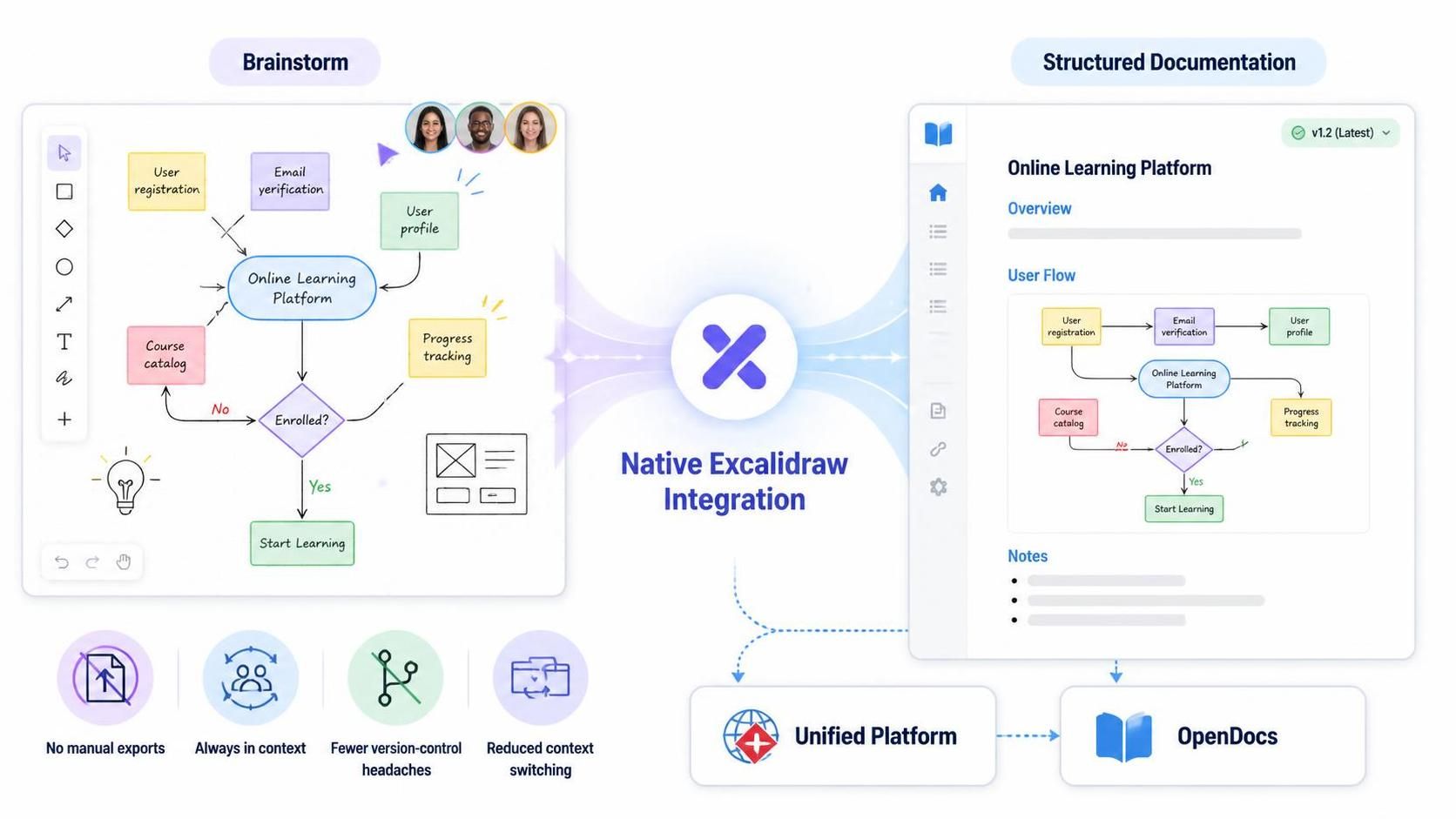
The diagram illustrates a seamless transition from a “Brainstorm” environment to a “Structured Documentation” environment. Let’s break down the components of this workflow.
1. The Native Excalidraw Canvas (Brainstorm)
The left side of the visual represents the “Brainstorm” mode. This is where the magic happens. Instead of a static image, the system provides a live, interactive canvas. The diagram shows a flowchart for an Online Learning Platform, featuring:
- Fluid Shapes: Hand-drawn style rectangles and ovals (e.g., “User registration”, “Course catalog”).
- Logic Gates: A diamond shape representing a decision point: “Enrolled?”.
- Collaboration: Avatars at the top indicate that multiple users can interact with the diagram simultaneously.
This environment supports the “fluid, unstructured freedom” mentioned in the introduction. Developers and designers can sketch complex cloud topologies or user flows without worrying about strict formatting rules.
2. The Unified Platform & OpenDocs (Structured Documentation)
The right side of the visual demonstrates the output: the Structured Documentation view within the Unified Platform. Notice how the sketch from the brainstorming phase appears here, but it is now part of a larger context:
- Version Control: The top right corner shows a version indicator (v1.2 Latest), ensuring that the documentation is always up to date.
- Contextual Embedding: The diagram is not just an image; it is embedded within a document titled “Online Learning Platform.” It sits alongside an “Overview” and “Notes” section.
- Preserved Logic: The flow logic (User registration → Email verification → Enrolled? → Start Learning) is preserved, bridging the gap between the idea and the technical requirement.
Key Benefits of the Integration
The bottom section of the diagram highlights four critical advantages that address common pain points in software development:
- No Manual Exports: There is no need to save a file and re-upload it. The diagram exists natively within the platform.
- Always in Context: The visual asset is linked directly to the project data, ensuring that when the diagram changes, the documentation updates instantly.
- Fewer Version-Control Headaches: By eliminating the file export cycle, teams avoid the common issue of having “v1finalv2.png” vs. “v2_final.png”.
- Reduced Context Switching: Teams stay within the Unified Platform, focusing on the work rather than managing file systems.
Step-by-Step: How to Model with Native Excalidraw
To leverage this feature in your own projects, follow this architectural workflow:
Step 1: Initiate the Canvas
Open the Unified Platform and select the option to create a new diagram or document. Choose the Excalidraw template. This activates the native integration, providing the toolbar seen on the left of the diagram.
Step 2: Sketch Your System
Use the tools to sketch your architecture. For example, if you are designing the Online Learning Platform, draw the entities:
- User Registration (Input)
- Database (Storage)
- Verification Service (Processing)
Connect these with arrows to represent data flow. You can use the Lightbulb icon for ideas or the Wireframe icon for UI mockups.
Step 3: Transition to Documentation
Once the sketch is complete, click to embed it into the OpenDocs workspace. The system renders the sketch into the documentation view. You can now add text, notes, and formal requirements around the diagram.
Step 4: Iterate and Share
Because the diagram is native, you can go back to the canvas at any time to make changes. The documentation view will automatically reflect these updates, ensuring your team always works from the latest version.
Conclusion
The Native Excalidraw Integration represents a significant leap forward in how we visualize software architecture. By unifying the Brainstorm and Structured Documentation phases, Visual Paradigm allows teams to focus on what matters most: solving problems and building great products. Whether you are mapping cloud topologies or designing user flows, this integration ensures your visual assets are always accurate, accessible, and up-to-date.