
Mastering Profit and Loss Logic: A Step-by-Step Flowchart Guide with Visual Paradigm
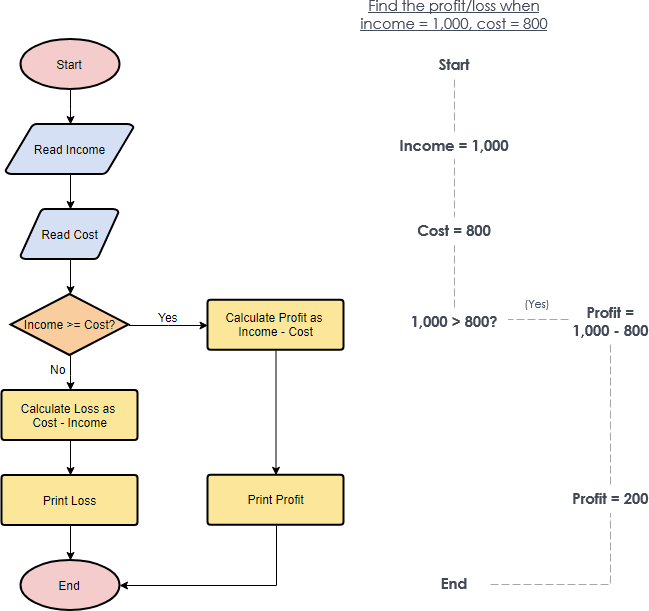
In the world of business analysis and software engineering, translating financial logic into visual representations is a critical skill. Whether you are designing a banking application, building an e-commerce checkout system, or simply auditing a spreadsheet, understanding how to map out the “Profit and Loss” calculation is fundamental. This tutorial guides you through the architecture of a classic decision-making process, demonstrating how to visualize the calculation of profit or loss based on income and cost inputs.
Understanding the Core Components
A flowchart is more than just a drawing; it is a blueprint of logic. To build the Profit and Loss model effectively, we must first identify the standard symbols used in this specific diagram. Each shape serves a distinct purpose in the flow of data:
- Terminator (Oval): Represents the start and end points of the process. In our diagram, the pink ovals mark “Start” and “End.”
- Input/Output (Parallelogram): Used to denote data entering or leaving the system. Here, we see blue parallelograms for “Read Income” and “Read Cost.”
- Process (Rectangle): Indicates a specific action or calculation. The yellow rectangles handle the arithmetic logic (e.g., “Calculate Profit as Income – Cost”).
- Decision (Diamond): The most crucial element for logic control. The orange diamond, labeled “Income >= Cost?”, splits the flow into two distinct paths: Yes and No.
Tracing the Logic Flow
Let’s walk through the execution path of the algorithm shown in the diagram. This step-by-step breakdown illustrates how a computer or a human operator would process the data.
Step 1: Initialization and Input
The process begins at the Start node. The system immediately requires two key variables to proceed: Income and Cost. The flow moves down to the input blocks where these values are read. For example, the supplementary note in the image suggests a scenario where Income = 1,000 and Cost = 800.
Step 2: The Decision Point
Once the values are captured, the flow hits the decision diamond: Income >= Cost?. This is the fork in the road. The system evaluates the boolean condition:
- If Income is greater than or equal to Cost, the flow follows the “Yes” path.
- If Income is less than Cost, the flow follows the “No” path.
Step 3: Processing the Outcome
Depending on the outcome of the decision, the system executes one of two specific calculation processes:
- The Profit Path (Yes Branch): If the condition is met, the system executes the “Calculate Profit as Income – Cost” process. Using our example values (1,000 – 800), the result is a positive profit. The flow then proceeds to “Print Profit” before ending.
- The Loss Path (No Branch): If the condition fails (meaning costs exceed income), the system executes the “Calculate Loss as Cost – Income” process. The flow then proceeds to “Print Loss” before ending.
Implementing the Diagram in Visual Paradigm
To recreate this architecture, you can utilize Visual Paradigm, a powerful tool for modeling business processes. The tool allows you to drag and drop these specific shapes onto a canvas and connect them with directional arrows to enforce the logic order.
When using the tool, ensure you configure the decision diamond to explicitly label its outgoing edges as “Yes” and “No.” This is a common best practice that prevents ambiguity when the diagram becomes complex. Visual Paradigm’s “Auto-Layout” feature can also help keep the “Yes” branch flowing to the right and the “No” branch flowing down, maintaining a clean and readable layout.
graph TD
    Start([Start]) --> InputIn[Read Income]
    InputIn --> InputC[Read Cost]
    InputC --> Decision{Income >= Cost?}

    Decision -- Yes --> CalcProfit[Calculate Profit as Income - Cost]
    CalcProfit --> PrintProfit[Print Profit]

    Decision -- No --> CalcLoss[Calculate Loss as Cost - Income]
    CalcLoss --> PrintLoss[Print Loss]

    PrintProfit --> End([End])
    PrintLoss --> End
Why Visual Modeling Matters
The diagram on the right side of the source image demonstrates the “Trace” or “Walkthrough” feature often found in modeling tools. By inputting specific values (1,000 and 800), the tool highlights the active path (1,000 > 800? -> Yes -> Profit = 200). This visual verification is invaluable for debugging complex financial systems before a single line of code is written. By separating the logic (the flowchart) from the data (the specific numbers), you create a robust, reusable system design.