
Now Reading: Visual Paradigm AI-Assisted UML Class Diagram Generator
-
01
Visual Paradigm AI-Assisted UML Class Diagram Generator


Visual Paradigm AI-Assisted UML Class Diagram Generator
The Visual Paradigm AI-Assisted UML Class Diagram Generator is a free, browser-based, interactive tool designed to help users—ranging from students and educators to developers, architects, business analysts, and hobbyists—create professional UML class diagrams quickly and efficiently. It combines a structured 10-step guided wizard with AI assistance at multiple stages, allowing you to start from a simple text idea (e.g., “a university course registration system”) and progress to a complete, validated, documented, and exportable diagram.
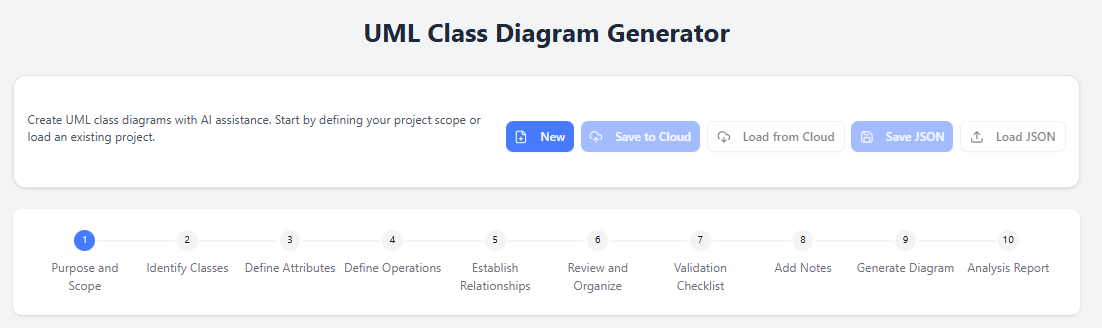
The tool uses PlantUML under the hood for diagram rendering (you can view/edit the raw code), emphasizes educational value with “Learning Corner” tips, includes automated validation, AI-generated notes, and a final analysis report. No installation is required—access it directly at:
https://ai-toolbox.visual-paradigm.com/app/ai-assisted-uml-class-diagram-generator/
(or related entry points like https://www.visual-paradigm.com/features/ai-assisted-uml-class-diagram-generator or https://ai.visual-paradigm.com/tool/ai-assisted-uml-class-diagram-generator).
Key Features and Benefits
- Guided 10-step workflow breaks complex design into manageable parts.
- AI assistance for generating scope/purpose, suggesting classes/attributes/operations/relationships, notes, and a full critique/report.
- Educational focus — includes tips explaining UML concepts at each step.
- Iterative & flexible — edit anything manually, regenerate suggestions, preview visually.
- Export options — PlantUML (.puml), SVG (.svg), project state (.json).
- Persistence — Save/load to cloud (if logged in) or local JSON files.
- No cost for core usage — ideal for learning, prototyping, or rapid design.
Overall User Flow
- Start a new project or load an existing one.
- Progress linearly (or jump back) through the 10 steps.
- Use AI “Generate” buttons liberally to accelerate each stage.
- Review/edit at every step.
- Validate → add notes → generate visual diagram → get AI analysis report.
- Export/save your work.
The 10-Step Wizard Explained
The tool organizes creation into these sequential (but revisitable) stages:
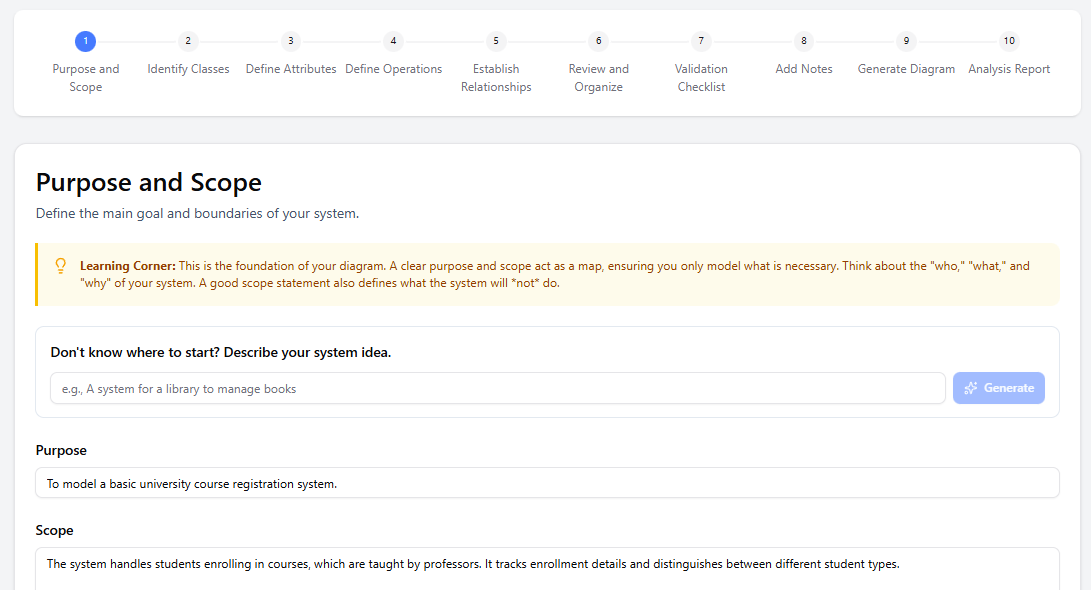
- Purpose and Scope Define the system’s main goal and boundaries.
- Input field: Describe your system idea (e.g., “A basic university course registration system”).
- Generate button: AI expands a short prompt into a clear Purpose statement and detailed Scope (including “what the system will not do”).
- Learning tip: Focus on who (actors), what (functionality), why (goals), and explicit exclusions. Example output: Purpose = “To model a basic university course registration system.” Scope = “Handles students enrolling in courses taught by professors, tracks enrollment details, distinguishes student types…”
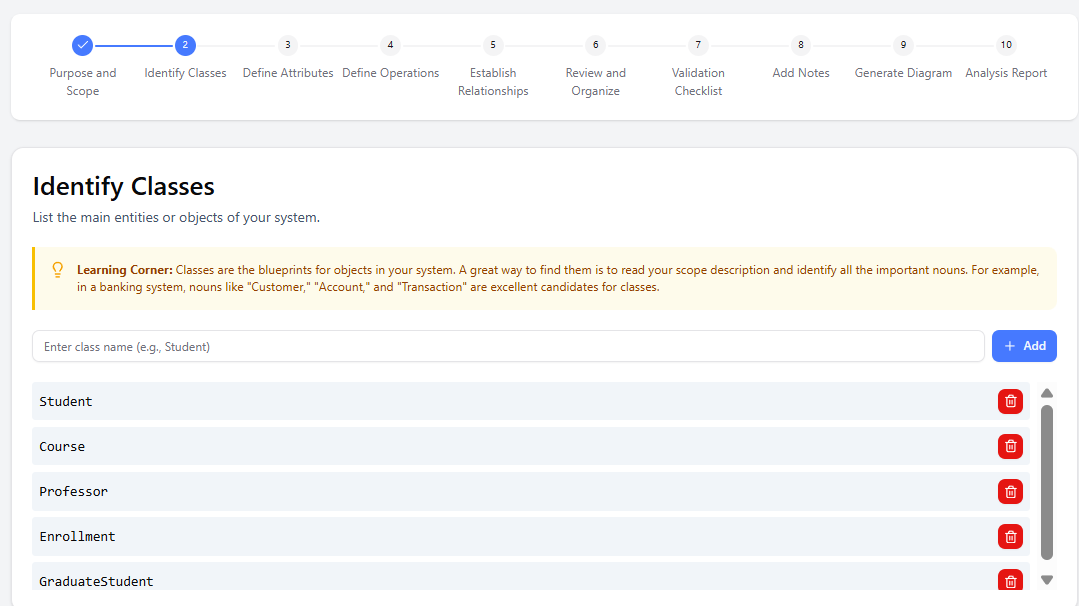
- Identify Classes List core entities/objects (e.g., Student, Course, Professor, Enrollment).
- AI can suggest classes based on the scope from step 1.
- Add/edit/delete classes manually.
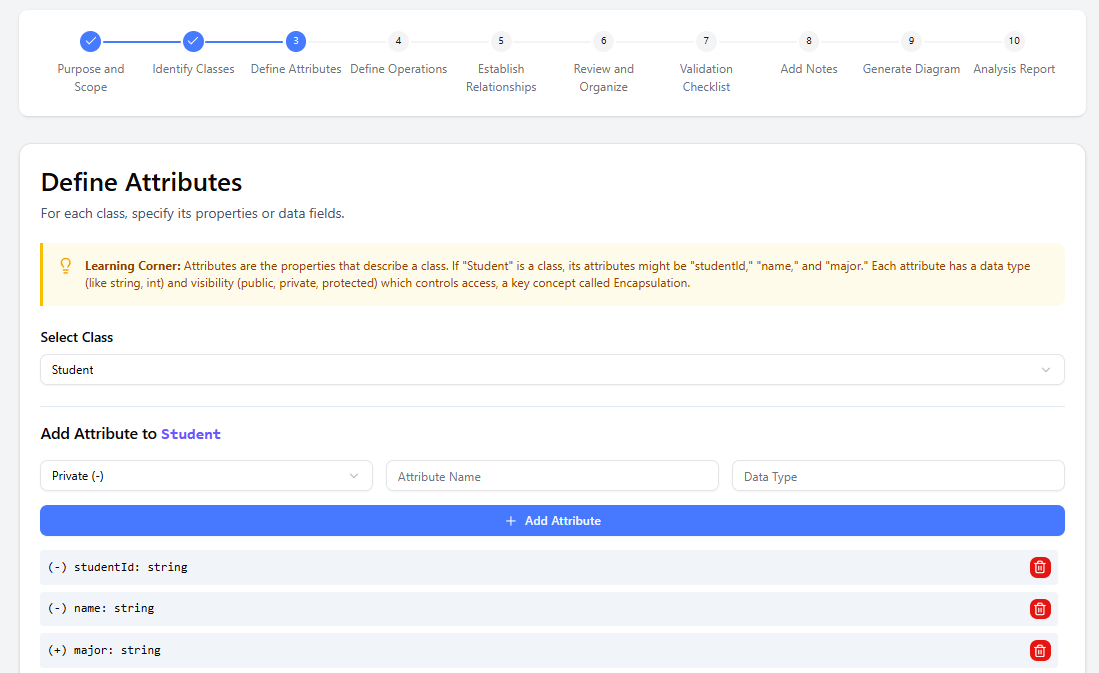
- Define Attributes Add properties/data fields to each class (e.g., Student → studentId: String, name: String, gpa: double).
- AI suggestions available per class.
- Specify visibility, types, default values if desired.
- Define Operations Add methods/behaviors (e.g., Course → enrollStudent(), getEnrollmentCount()).
- AI helps generate realistic method signatures based on responsibilities.
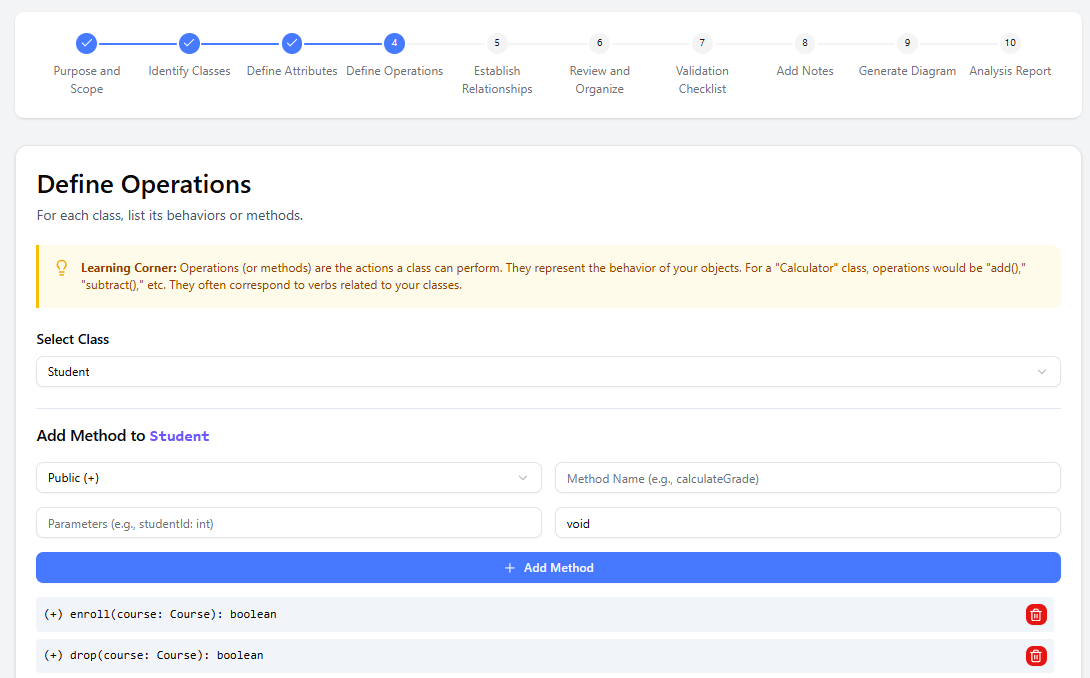
- AI helps generate realistic method signatures based on responsibilities.
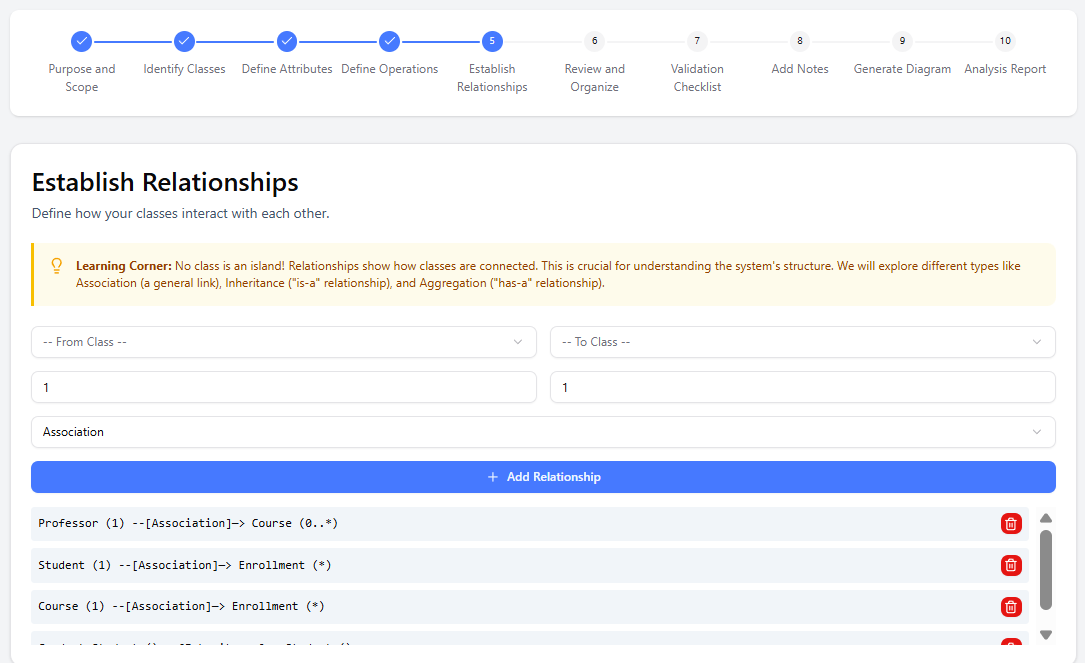
- Establish Relationships Connect classes with UML relationships:
- Association, Aggregation, Composition, Inheritance (Generalization), Dependency, etc.
- Specify multiplicity (1..*, 0..1, etc.), roles, direction, and descriptions.
- AI suggests logical connections based on prior steps.
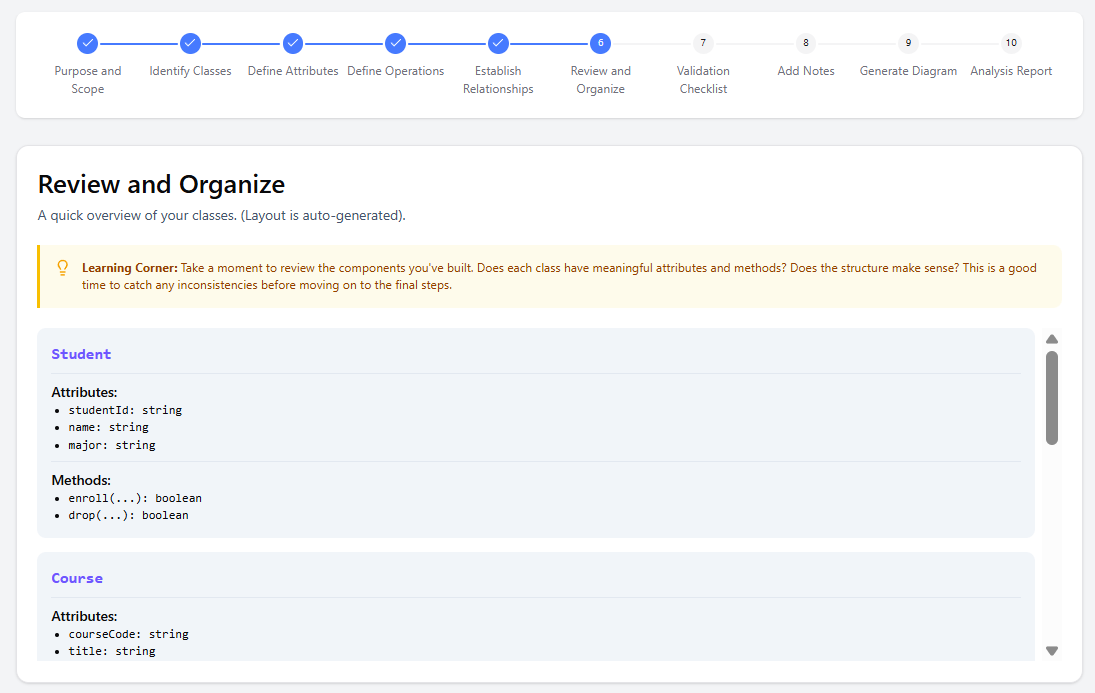
- Review and Organize Consolidated, read-only overview of the full structure.
- Check consistency, completeness, naming conventions.
- Rearrange or tweak organization.
- Validation Checklist Automated check against UML best practices (e.g., missing multiplicities, unclear names, violated principles).
- Highlights issues with suggestions to fix them early.
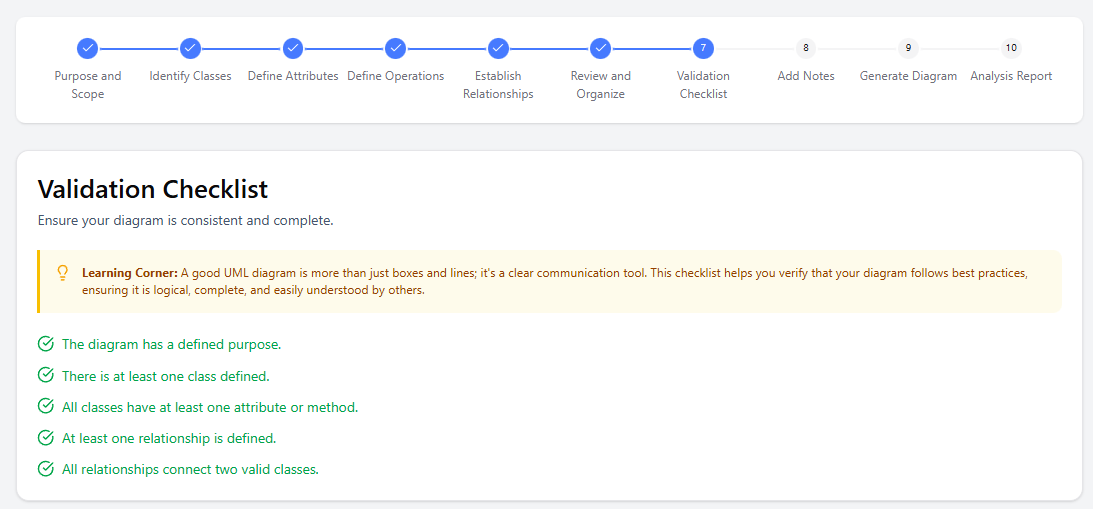
- Highlights issues with suggestions to fix them early.
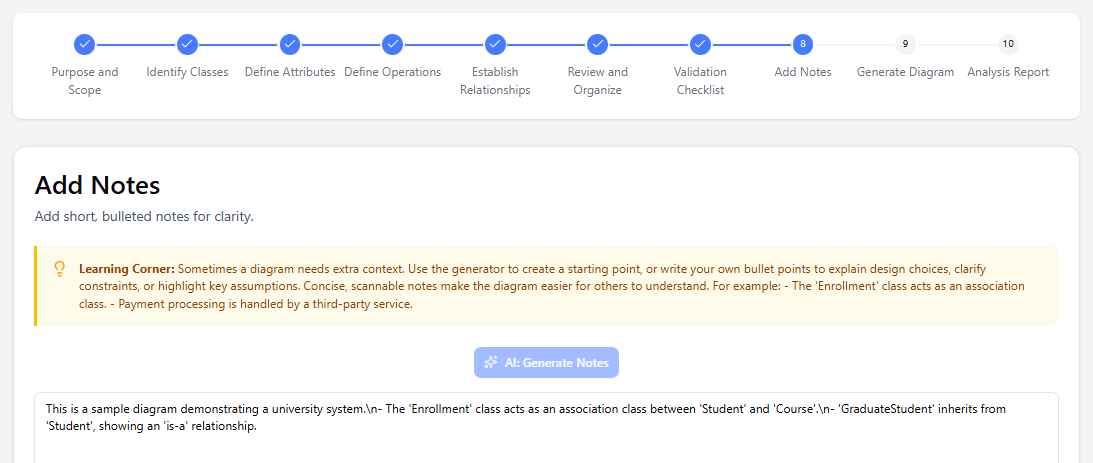
- Add Notes Add manual annotations or let AI generate summary/explanatory notes (rationale, design decisions, key patterns).
- Great for documentation or teaching.
- Great for documentation or teaching.
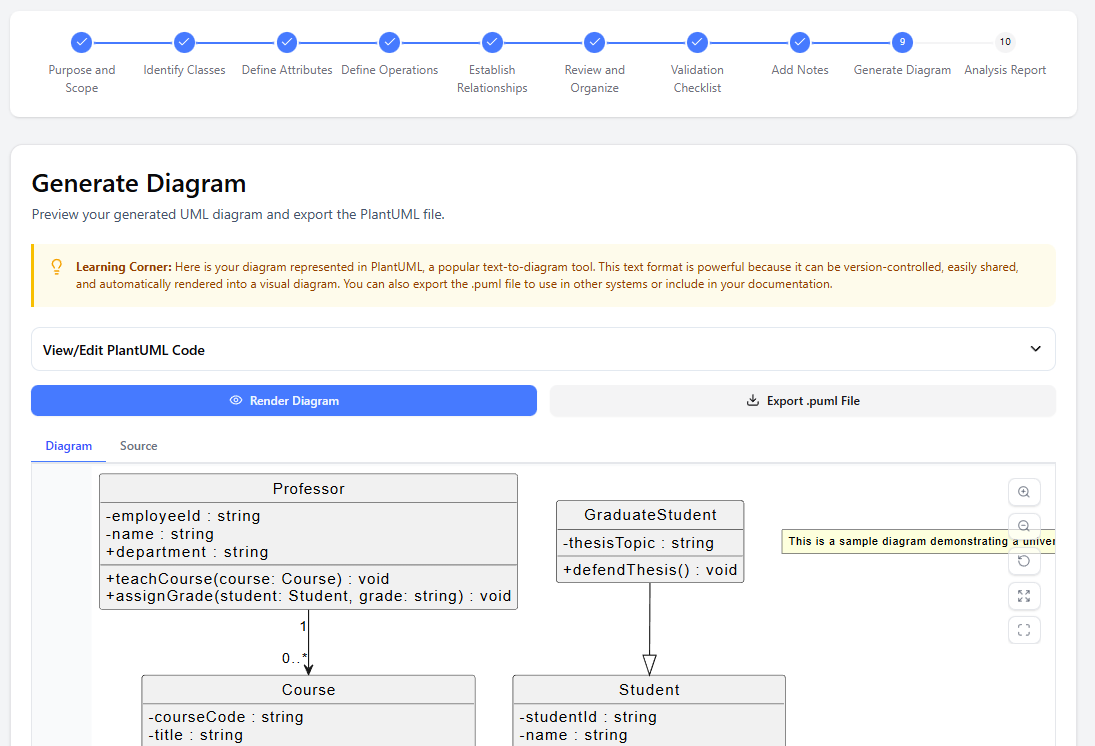
- Generate Diagram Renders the diagram visually (SVG via PlantUML).
- View raw PlantUML code → edit if you want custom tweaks.
- Re-render after changes.
- Analysis Report AI-powered critique: identifies patterns (e.g., good use of inheritance), suggests improvements (e.g., “consider interface for payment”), assesses maintainability, completeness, adherence to SOLID/OO principles, etc.
- Educational and professional insights in one place.

- Educational and professional insights in one place.
Practical Tips for Best Results
- Start simple — even a one-sentence description works; iterate and refine.
- Use domain terms — AI understands patterns like “shopping cart”, “user authentication”, “course enrollment”.
- Iterate freely — Go back to previous steps, regenerate AI suggestions, or override manually.
- Leverage AI aggressively — Click “Generate” at every opportunity for speed and inspiration.
- Validate early — Run the checklist before investing time in notes/diagram.
- Export strategically
- .json → full project state (reload later).
- .puml → import into other PlantUML tools/editors.
- .svg → high-quality image for docs/presentations.
- For learning — Read every “Learning Corner” tip; use the analysis report to understand trade-offs.
- Cloud vs local — If logged in (free account), use cloud save/load for convenience; otherwise rely on JSON files.
Who It’s For (and How They Benefit)
- Students/Educators — Learn UML step-by-step with explanations, tips, and AI feedback.
- Developers/Architects — Rapid prototyping of domain models, quick reviews, code-ready structure.
- Business Analysts — Visualize requirements accurately.
- Hobbyists/Indie Devs — Professional results without steep learning curve or paid tools.
This tool stands out for its educational depth, structured guidance, and balance between AI automation and manual control—making it one of the most thoughtful AI UML assistants available in 2026. Start experimenting with your own system idea today! If you have a specific domain/project you’d like an example walkthrough for, provide details.
Conclusion
The Visual Paradigm AI-Assisted UML Class Diagram Generator stands out as one of the most thoughtful and practical AI-powered tools available for learning, teaching, and quickly creating high-quality UML class diagrams.
Its greatest strengths are:
- Structured 10-step guidance that breaks down a complex modeling task into clear, manageable stages
- Thoughtful balance between AI automation and manual control — the tool suggests intelligently but never forces you to accept its proposals
- Strong educational focus with well-written “Learning Corner” explanations at every step
- Built-in quality assurance through the automated validation checklist and final AI-powered analysis report
- Zero cost for the core functionality and no software installation required
Whether you are:
- a student trying to understand object-oriented modeling and UML notation
- a teacher looking for a modern, interactive way to demonstrate class diagram creation
- a developer or software architect who needs to quickly sketch or communicate a domain model
- a business analyst translating requirements into a precise structural view
- or just someone exploring software design for fun
…this tool offers an unusually smooth and supportive experience.
In an era where many AI tools produce impressive but often shallow results, Visual Paradigm’s generator distinguishes itself by emphasizing correctness, pedagogical clarity, and iterative refinement — exactly the qualities most valuable when learning or doing serious design work.
Final recommendation If you need to create a class diagram — whether for a school assignment, a project kick-off, a design discussion, or simply to clarify your own thinking — start here: https://ai-toolbox.visual-paradigm.com/app/ai-assisted-uml-class-diagram-generator/
Describe your system in one or two sentences, let the AI help you build step by step, and you’ll likely end up with a cleaner, better-structured diagram in far less time than starting from scratch in a traditional UML tool.
Happy modeling!