


In the fast-evolving world of software development, use case diagrams are essential for capturing user goals, defining system functionality, and aligning stakeholders. But traditional methods often lead to inconsistent diagrams, misaligned requirements, and wasted hours on manual drawing.
Enter Visual Paradigm — the leading AI-powered visual modeling platform since 2002. With its powerful AI-driven ecosystem, Visual Paradigm doesn’t just generate diagrams — it transforms how teams define, refine, and implement system behavior using intelligent, traceable, and collaborative use case modeling.
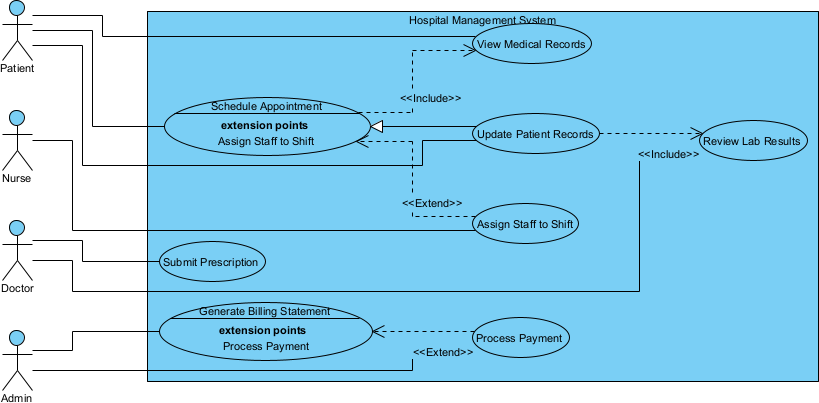
This comprehensive guide walks you through every major tool and workflow in Visual Paradigm’s AI-powered use case diagraming suite. Whether you’re a business analyst, developer, project manager, or architect, this guide will help you create professional, accurate, and production-ready use case diagrams faster than ever before.
🔍 Why Use Case Diagrams Matter (And Why Manual Creation Fails)
Use case diagrams are more than just visuals — they’re foundational to:
-
Defining user-system interactions
-
Capturing system scope and functionality
-
Supporting agile planning, requirements analysis, and design validation
-
Enabling traceability across requirements, code, and testing
Yet, manually creating them leads to:
-
Inconsistent modeling practices
-
Missing relationships (e.g.,
<<include>>,<<extend>>) -
Poor layout and readability
-
No integration with documentation or code
-
Collaboration bottlenecks
Enter AI-powered modeling — where natural language drives intelligent diagram generation, refinement, and documentation.
🌐 Visual Paradigm’s AI Ecosystem: Four Core Platforms
Visual Paradigm’s strength lies in its integrated AI ecosystem, offering four distinct yet interconnected platforms to support every stage of use case diagram creation:
| Platform | Best For | Key AI Features |
|---|---|---|
| VP Desktop | Professional, enterprise-grade modeling | AI diagram generation, traceability, code export, team collaboration |
| OpenDocs | Knowledge sharing & collaborative documentation | Embeddable AI diagrams, real-time editing, team alignment |
| AI Visual Modeling Chatbot | Conversational design & rapid prototyping | Natural language input, iterative refinement, instant feedback |
| Web Apps | Guided, best-practice workflows | Specialized AI tools for modeling, analysis, and reporting |
Let’s explore each in detail.
✅ 1. VP Desktop – The AI-Powered Modeling Powerhouse
For enterprise teams who demand precision, traceability, and code integration.
VP Desktop is Visual Paradigm’s flagship desktop application — a full-featured, offline-capable UML/SysML modeling tool with deep AI integration.
🎯 Key Benefits for Use Case Diagrams
-
Generate diagrams directly from text descriptions
-
Full traceability: link use cases to requirements, scenarios, and downstream diagrams
-
Export to code (Java, C#, Python), documentation, or reports
-
Version control & team collaboration via Visual Paradigm Server
-
Advanced layout engine with auto-alignment and smart routing
🛠️ How to Generate a Use Case Diagram with AI in VP Desktop
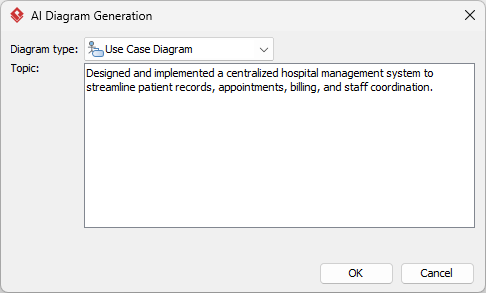
Step 1: Open AI Diagram Generation
From the top menu, go to:
Tools → AI Diagram Generation
A pop-up window appears.
Step 2: Select Diagram Type
Choose Use Case Diagram from the dropdown.
Step 3: Describe Your System
In the text area, type a clear, detailed description.
Example:
“Create a use case diagram for an online grocery delivery app. Actors include Customer, Delivery Driver, and Admin. Features: place order, track delivery, manage inventory, process payments, and handle refunds.”
Step 4: Generate
Click OK → The AI generates a fully editable use case diagram.
Step 5: Refine & Use
Now you can:
-
Drag and drop actors and use cases
-
Add
<<include>>or<<extend>>relationships -
Adjust layout automatically
-
Add notes or constraints
-
Export as PNG, SVG, PDF, or embed in reports
-
Generate code or documentation
💡 Pro Tip: Use AI-generated diagrams as a starting point — then refine them manually for precision.
📄 2. OpenDocs – Embed AI Diagrams in Living Documentation
For teams who value communication, collaboration, and knowledge retention.
OpenDocs is Visual Paradigm’s smart document platform — think of it as a Notion-like workspace where diagrams are not static images, but interactive, editable components.
🎯 Key Benefits
-
Embed AI-generated use case diagrams directly into reports, wikis, or strategy documents
-
Collaborate in real time — no need to switch tools
-
Update diagrams inline without breaking context
-
Ideal for stakeholder reviews, sprint planning, and onboarding
🛠️ How to Insert an AI-Generated Use Case Diagram in OpenDocs
Step 1: Create or Open a Page
Log in to your Visual Paradigm Online account → Navigate to OpenDocs → Create a new document or open an existing one.
Step 2: Insert a Diagram
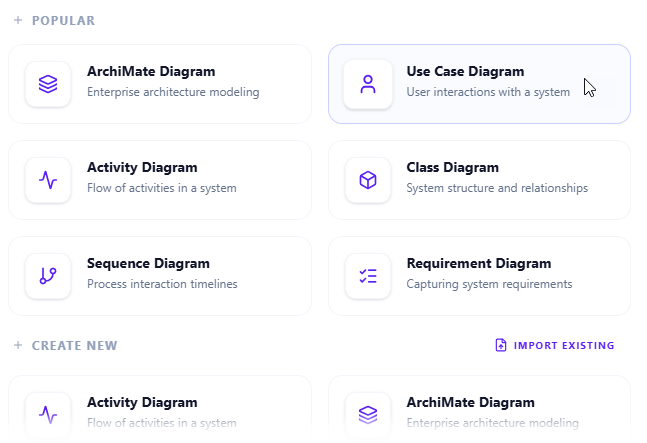
In the editor toolbar, click Insert → Diagram → Use Case Diagram.
Step 3: Generate with AI
In the diagram editor, click Create with AI (top-right corner).
Step 4: Describe Your System
Type:
“Generate a use case diagram for a university library system. Include actors: Student, Librarian, and Admin. Include use cases: borrow book, return book, renew loan, search catalog, and manage inventory.”
Click Generate.
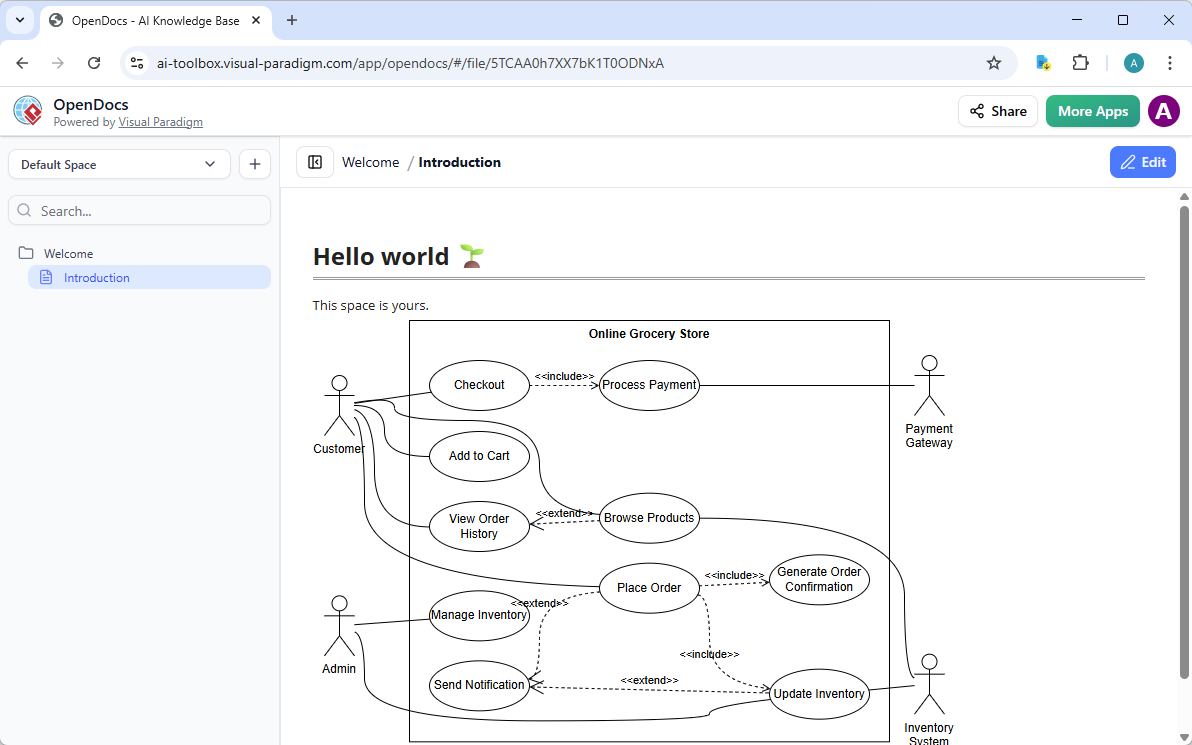
Step 5: Refine & Save
-
Use drag-and-drop to reposition elements
-
Adjust labels, colors, or add notes
-
Click Save → Then Close
✅ The diagram is now embedded as a live, editable block in your document.
🔄 Any changes made in the diagram will update automatically in the document — perfect for evolving models during reviews.
💬 3. AI Visual Modeling Chatbot – Design by Conversation
For agile teams, beginners, or anyone who wants to brainstorm without starting from scratch
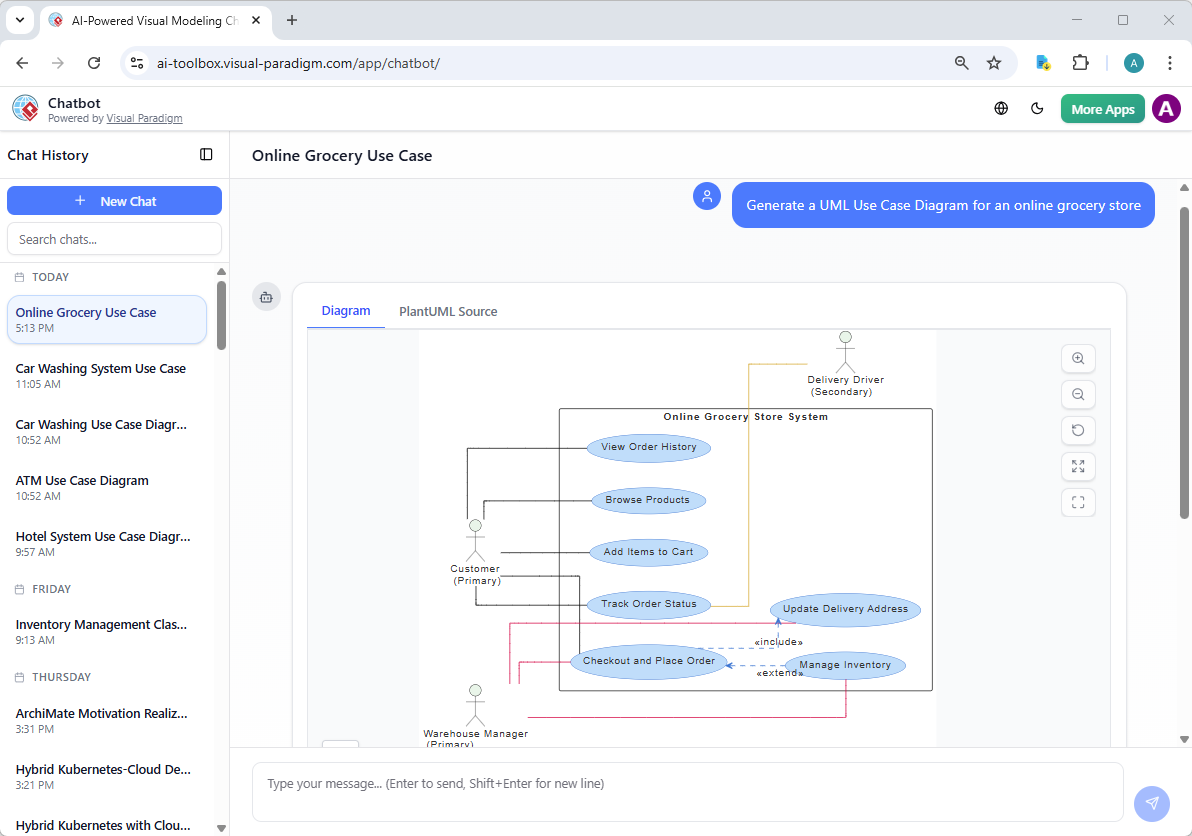
The AI Visual Modeling Chatbot turns use case modeling into a natural conversation — no templates, no learning curve.
🎯 Key Benefits
-
Describe your system in plain English
-
Get instant, professional-grade use case diagrams
-
Refine through dialogue: “Add error handling,” “Explain this use case,” “Generate a report”
-
Export diagrams, reports, or open in VP Desktop for deeper work
🛠️ How to Generate a Use Case Diagram with the Chatbot
Step 1: Launch the Chatbot
-
Web version: Visit https://chat.visual-paradigm.com/
-
Desktop version: In VP Desktop, go to Tools → Chatbot
Step 2: Start a New Chat
Click New Chat to begin.
Step 3: Describe Your System
Type:
“Generate a use case diagram for an e-commerce platform with customer, admin, and payment gateway actors. Include: browse products, add to cart, checkout, view order history, manage inventory, and process refunds.”
Press Enter.
Step 4: Review & Refine
The AI generates a clean, UML-compliant diagram instantly.
Now, keep the conversation going:
-
“Add an extend relationship for ‘cancel order’ to ‘checkout’”
-
“Explain the ‘manage inventory’ use case”
-
“Generate a summary report of all actors and use cases”
Step 5: Export or Integrate
-
Click Export → Choose format (PNG, PDF, PlantUML)
-
Or Open in VP Desktop for advanced editing
-
Or Embed in OpenDocs for documentation
🧠 This is ideal for agile teams doing spike sessions, sprint planning, or user story breakdowns.
🛠️ 4. Web Apps – AI-Powered Tools for Best-in-Class Use Case Modeling
Visual Paradigm’s Web Apps are specialized, browser-based tools that guide you through AI-assisted use case modeling — perfect for best practices, analysis, and automation.
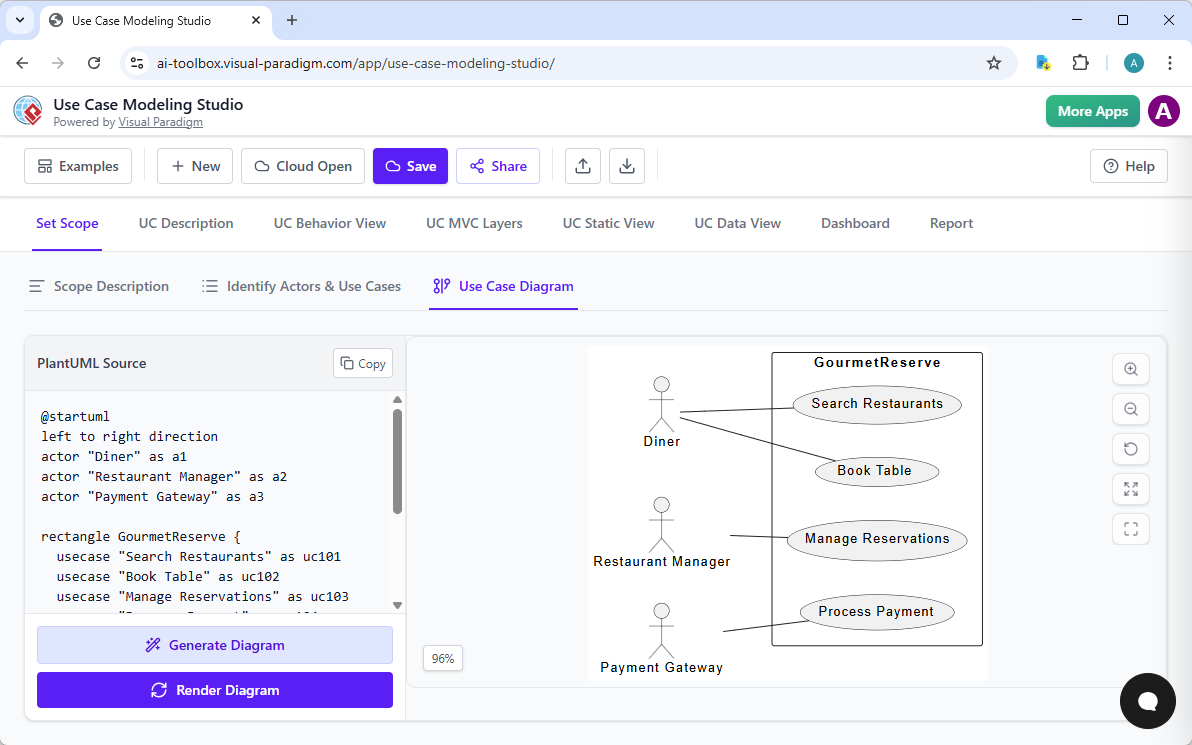
Here are the top 6 AI-powered Web Apps for use case modeling:
| App Name | Purpose | How It Helps |
|---|---|---|
| AI Powered Use Case Modeling Studio | End-to-end AI-driven modeling | From scope to design — auto-generates use cases, diagrams, and design docs |
| Use Case Description Generator | Turn ideas into specs | Generates detailed use case descriptions + PlantUML diagram |
| Use Case Diagram Refinement Tool | Upgrade basic diagrams | Adds <<include>>, <<extend>>, improves layout, enforces UML standards |
| Use Case to Activity Diagram Generator | Bridge text to behavior | Converts use case flows into activity diagrams |
| Use Case Diagram Report Generator | Turn diagrams into reports | Auto-generates Markdown reports from PlantUML code |
| Extend and Include Use Case Analyzer | Analyze complex diagrams | Identifies and extracts <<extend>>/<<include>> relationships for validation |
🔍 Real-World Example: Using the Use Case Description Generator
-
Go to Tools > Apps > Use Case Description Generator
-
Paste this prompt:
“An online banking system with Customer and Admin actors. Features: log in, view balance, transfer funds, apply for loan, approve loan, and manage user accounts.”
-
Click Generate
-
Output:
-
List of actors and use cases
-
Detailed Markdown use case specifications (preconditions, flows, exceptions)
-
PlantUML code for a use case diagram
-
Option to export as PDF or HTML report
-
✅ Perfect for kickstarting requirements documentation or feeding into other tools.
🏆 Why Visual Paradigm Is the Best AI UML Tool for Use Case Diagrams
| Feature | Visual Paradigm | Competitors |
|---|---|---|
| AI Integration | Deep, across all platforms | Often limited to one-off generation |
| Diagram Quality | UML-compliant, professional, layout-optimized | Often basic or poorly structured |
| Traceability | Full linkage to requirements, code, reports | Rarely available |
| Collaboration | Real-time editing, version control, team workspaces | Limited or absent |
| Multiple Workflows | Chat, desktop, docs, apps — all integrated | Usually only one method |
| Code Generation | Yes (Java, C#, Python, etc.) | Not always supported |
| Enterprise Ready | Since 2002 — trusted by Fortune 500 companies | Often lacks scalability |
✅ Visual Paradigm doesn’t just generate diagrams — it builds intelligent, interconnected, and implementation-ready models.
📌 Best Practices for AI-Powered Use Case Modeling
-
Start with a clear, detailed description
“Create a use case diagram for a mobile banking app with customer and admin roles” → Too vague
“Create a use case diagram for a mobile banking app where customers can log in, view balance, transfer funds, and report fraud. Admins can approve transactions, manage user accounts, and generate reports.” → ✅ Ideal -
Use the Chatbot for ideation, VP Desktop for refinement
Brainstorm with the chatbot → Finalize in VP Desktop with traceability and code export. -
Embed diagrams in OpenDocs for stakeholder alignment
No more static images — keep your documentation dynamic and collaborative. -
Use Web Apps to automate repetitive tasks
Generate reports, analyze relationships, convert to activity diagrams — all with AI. -
Validate with the Extend/Include Analyzer
Ensure complex dependencies are correctly modeled.
🚀 Conclusion: The Future of Use Case Modeling is Here
Visual Paradigm isn’t just an AI diagram generator — it’s an AI-powered visual modeling ecosystem that streamlines every phase of use case development:
-
Brainstorm with the AI Chatbot
-
Design with VP Desktop
-
Document with OpenDocs
-
Automate & Analyze with Web Apps
Whether you’re:
-
A business analyst defining requirements
-
A developer linking models to code
-
A project manager aligning stakeholders
-
Or a student learning UML
👉 Visual Paradigm gives you the tools to create professional, accurate, and scalable use case diagrams — faster, smarter, and with far fewer errors.
📣 Ready to Transform Your Workflow?
Try Visual Paradigm for Free Today
👉 https://www.visual-paradigm.com/download/
-
Free 30-day trial — full access to all AI tools
-
No credit card required
-
Works on Windows, macOS, Linux, and in the browser
💬 Final Thought:
The days of drawing use case diagrams by hand are over. With Visual Paradigm’s AI ecosystem, you’re not just saving time — you’re building better systems, faster.
Start your AI-powered use case journey today — and design with confidence.
✅ Download Visual Paradigm Now
👉 Get Free Trial
Transform your modeling — one AI-generated diagram at a time.
- AI Chatbot Feature – Intelligent Assistance for Visual Paradigm Users: This article introduces the core chatbot functionality designed to provide instant guidance and automate tasks within the modeling software.
- Visual Paradigm Chat – AI-Powered Interactive Design Assistant: An interactive interface that helps users generate diagrams, write code, and solve design challenges in real time through a conversational assistant.
- AI-Powered Use Case Diagram Refinement Tool – Smart Diagram Enhancement: This resource explains how to use AI to automatically optimize and refine existing use case diagrams for better clarity and completeness.
- Mastering AI-Driven Use Case Diagrams with Visual Paradigm: A comprehensive tutorial on leveraging specialized AI features to create intelligent and dynamic use case diagrams for modern systems.
- Visual Paradigm AI Chatbot: The World’s First Purpose-Built AI Assistant for Visual Modeling: This article highlights the launch of a groundbreaking AI assistant tailored specifically for visual modeling with intelligent guidance.
- AI-Powered Use Case Diagram Example for Smart Home System: A community-shared example of a professional use case diagram generated by AI, illustrating complex user-system interactions in an IoT environment.
- Master AI-Driven Use Case Diagrams: A Short Tutorial: A concise guide from Visual Paradigm on leveraging AI to create, refine, and automate use case diagram development for faster project delivery.
- Revolutionizing Use Case Elaboration with Visual Paradigm AI: This guide details how the AI engine automates documentation and enhances the modeling clarity of software requirements.
- How to Turn Requirements into Diagrams with an AI Chatbot: This article explores how project requirements can be evolved from simple text into full system designs through a conversational interface.
- AI-Powered Chatbot Development Using Visual Paradigm: A video tutorial demonstrating how to build an AI-driven chatbot using automated modeling techniques and assisted diagramming tools.