
Introduction
As someone who has spent countless hours juggling between diagramming tools, documentation platforms, and content creation software, I was skeptical when I first heard about Visual Paradigm’s Pipeline feature. Like many professionals in the tech and project management space, I’ve grown tired of the constant downloading, uploading, and version control nightmares that come with maintaining visual documentation. When Visual Paradigm announced their integrated Pipeline system connecting VP Online with OpenDocs, and later added flipbook sharing capabilities, I decided to put it through its paces. What follows is my honest experience testing this ecosystem over the past few months, from initial setup to daily workflow integration.
Discovering the Visual Paradigm Pipeline: My First Impressions
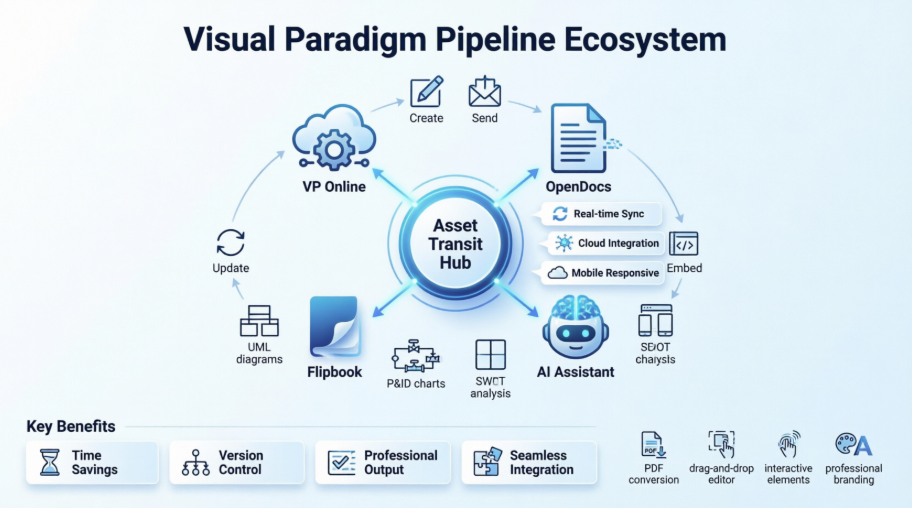
The Visual Paradigm Pipeline is what they call an “Asset Transit Hub”—essentially a specialized, secure, and centralized repository that streamlines the workflow between creating visual diagrams (UML, flowcharts, P&ID) and documenting them in Visual Paradigm OpenDocs.
What immediately caught my attention was how it enables users to move diagrams, charts, and artifacts from the Visual Paradigm Online editor or desktop application directly into documentation, avoiding the need for local downloads and enabling real-time synchronization. [1, 2]
Key Features That Stood Out to Me
Unified Cloud Workflow: In my testing, the Pipeline truly acts as a bridge between the cloud diagramming tool and OpenDocs, which serves as a centralized knowledge management platform. No more switching between applications or managing multiple file versions.
Real-time Synchronization: This was a game-changer for my workflow. When I modified a diagram in Visual Paradigm Online, I could re-send it to the Pipeline and it automatically updated within the corresponding documentation. No more “final_v2_updated_FINAL” file naming nightmares.
AI-Generated Integration: I experimented with AI-generated diagrams from the AI Chatbot, and being able to directly export them to the Pipeline and insert them into documents saved me significant time.
Secure Storage: The Pipeline stores “artifacts” (diagrams, designs) for easy retrieval, sharing, and management across the Visual Paradigm ecosystem. [2, 3]
My Step-by-Step Experience: Using the Pipeline (VPO to OpenDocs)
Here’s how I actually used the system in practice:
1. Create: I built diagrams in Visual Paradigm Online or with the AI tool. The interface was intuitive enough that I didn’t need extensive training.
2. Send: In the top menu, I selected Export > Send to OpenDocs Pipeline. This was straightforward and took just seconds.
3. Embed: In OpenDocs, I clicked Insert > Pipeline in the toolbar to embed the artifact. The integration felt seamless.
4. Update: When I needed to edit the original diagram, I re-sent it to the Pipeline and used the “Update to latest revision” feature to update the documentation. This eliminated the manual replacement process I was used to. [2, 4]
Real-World Applications I Tested
During my evaluation, I explored various types of visualizations for different projects:
-
UML & IT Systems: I modeled flowcharts and class diagrams for software architecture documentation
-
Process Engineering: I created Piping and Instrumentation Diagrams (P&ID) for technical specifications
-
Project Management: I built PERT charts and Work Breakdown Structures for project planning
-
Strategic Analysis: I developed SWOT, PESTLE, and Business Canvases for strategic planning sessions [6, 7, 8, 9, 10]
Important Note: The pipeline feature is primarily available to users with a Visual Paradigm Online Combo Edition subscription or Visual Paradigm Professional Edition. [2, 3] Make sure you have the right subscription before getting too excited!
The Game-Changer: Flipbook Integration with OpenDocs
Just when I thought the Pipeline couldn’t get more useful, Visual Paradigm announced a new workflow that brings digital publications to life within documentation. I tested the ability to share flipbooks created in Visual Paradigm Online directly to OpenDocs, and it genuinely made my manuals, reports, and portfolios more interactive.
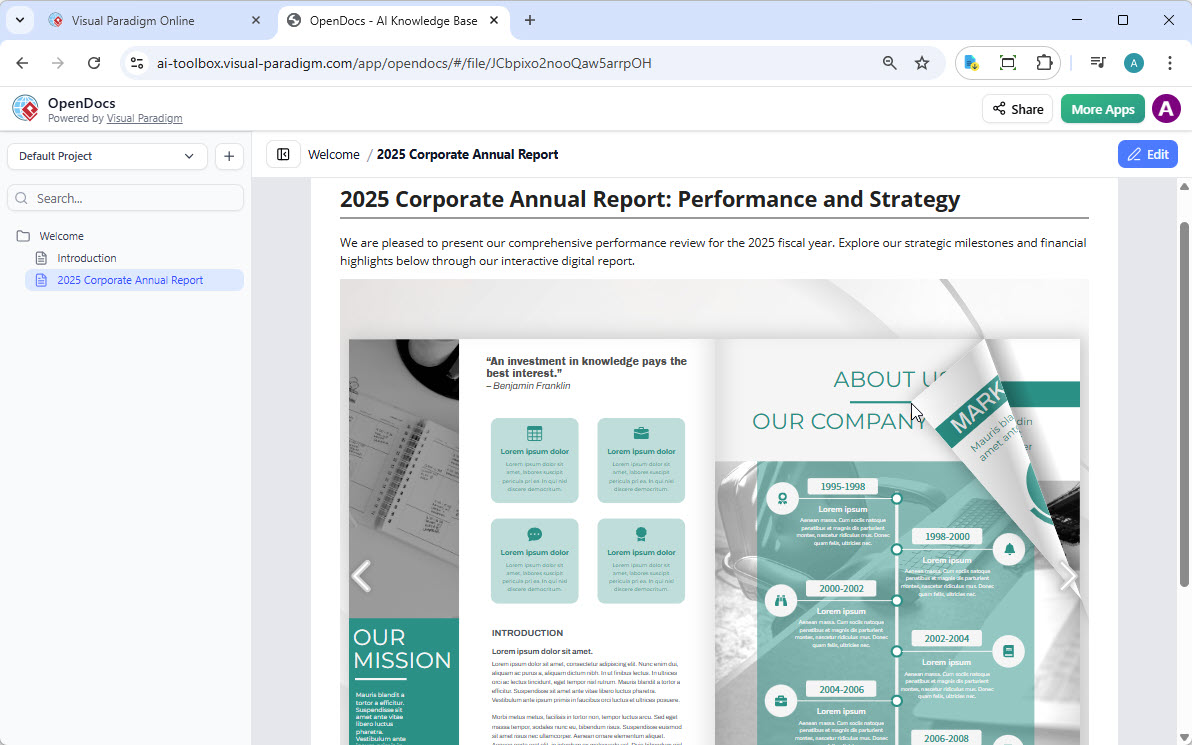
Whether you’re using the flipbook tool to generate professional content or fine-tuning a custom layout in the flipbook maker, this update ensures your audience can access your work exactly where they need it.
What I Could Do with Visual Paradigm Flipbooks
The flipbook software transformed my static documents into dynamic, engaging experiences. Here’s what I accomplished:
Convert & Create: I instantly transformed PDFs, Word docs, and PowerPoint slides into flipbooks, and even designed some from scratch using the drag-and-drop editor.
AI-Powered Generation: I used the AI assistant to generate full book outlines, write content, and even create matching illustrations in various art styles. This feature alone saved me hours of work.
Interactive Elements: I enhanced my books with embedded videos, audio, clickable links, and realistic page-flipping sound effects. The interactivity made my documentation feel professional and polished.
Professional Branding: I customized covers, themes, and backgrounds to match corporate identity requirements.
Mobile-First Reading: Every flipbook I created was fully responsive, ensuring a perfect reading experience on desktops, tablets, and smartphones. I tested this across multiple devices and was impressed.
My Hands-On Guide: Sharing Flipbooks to OpenDocs
Moving content from Visual Paradigm Online to the OpenDocs pipeline was simpler than I expected. Here’s my actual workflow:
-
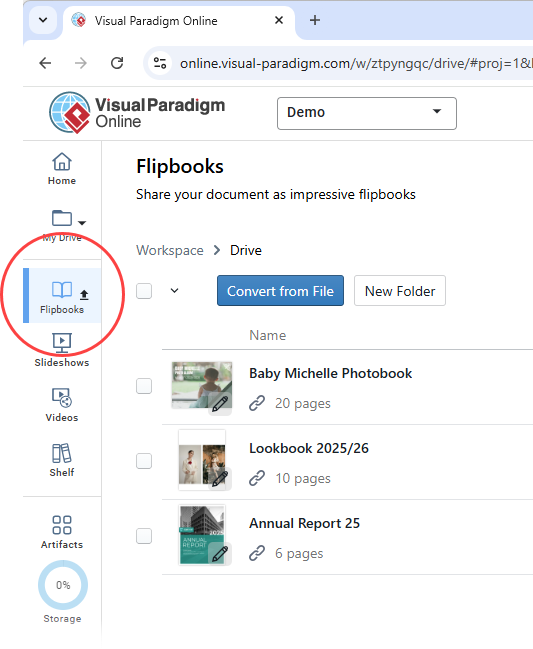
I opened my workspace page in Visual Paradigm Online.
-
I selected Flipbooks from the left-hand menu to view my library.
-
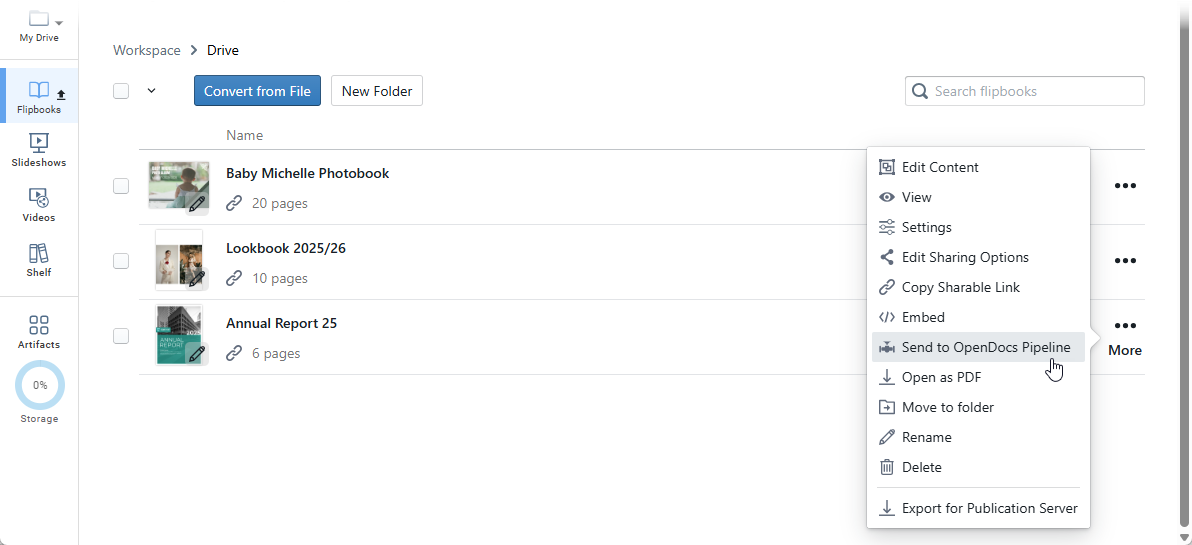
I located the flipbook I wished to share and clicked More… on the right side.
-
I selected Send to OpenDocs Pipeline.
-
(Optional) I entered a comment regarding this share and clicked OK to proceed.
Embedding Flipbooks in OpenDocs: My Experience
Once my flipbook was in the pipeline, here’s how I placed it in my document:
-
I navigated to the page in OpenDocs where I wanted to embed the book.
-
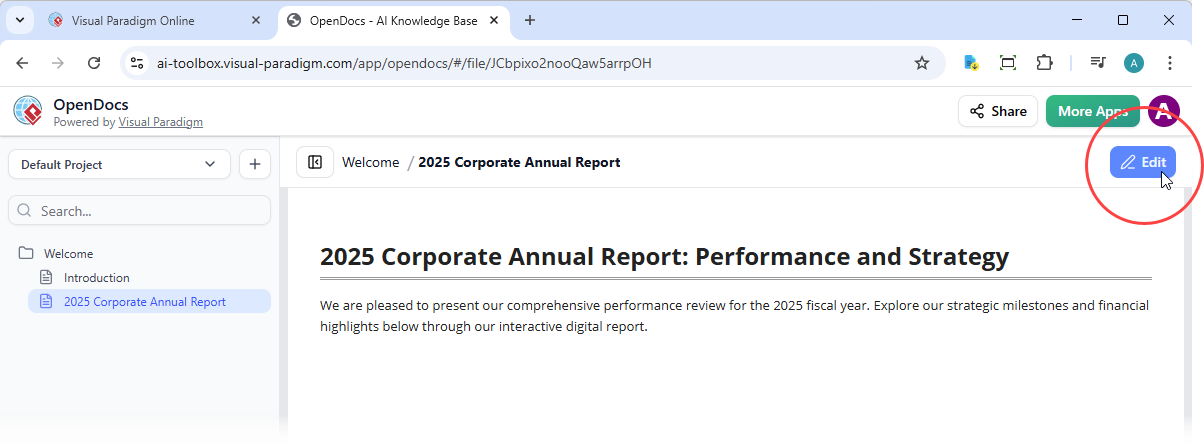
I clicked Edit at the top right of the screen.
-
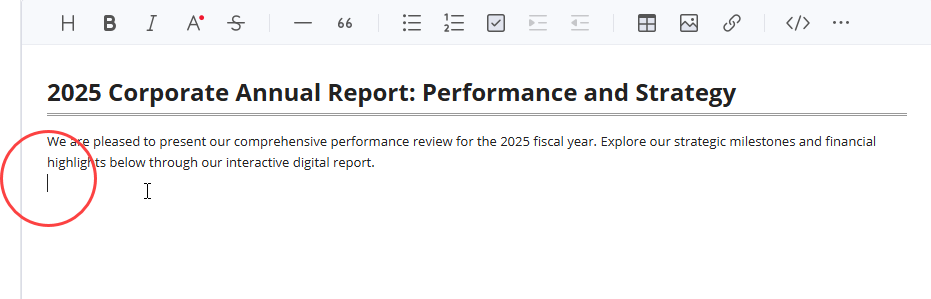
I positioned my cursor exactly where I wanted the flipbook to appear.
-
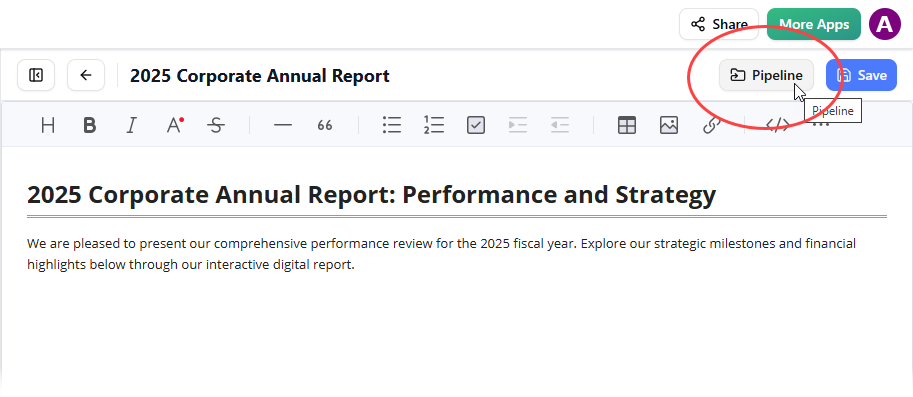
I clicked the Pipeline button located at the top right.
-
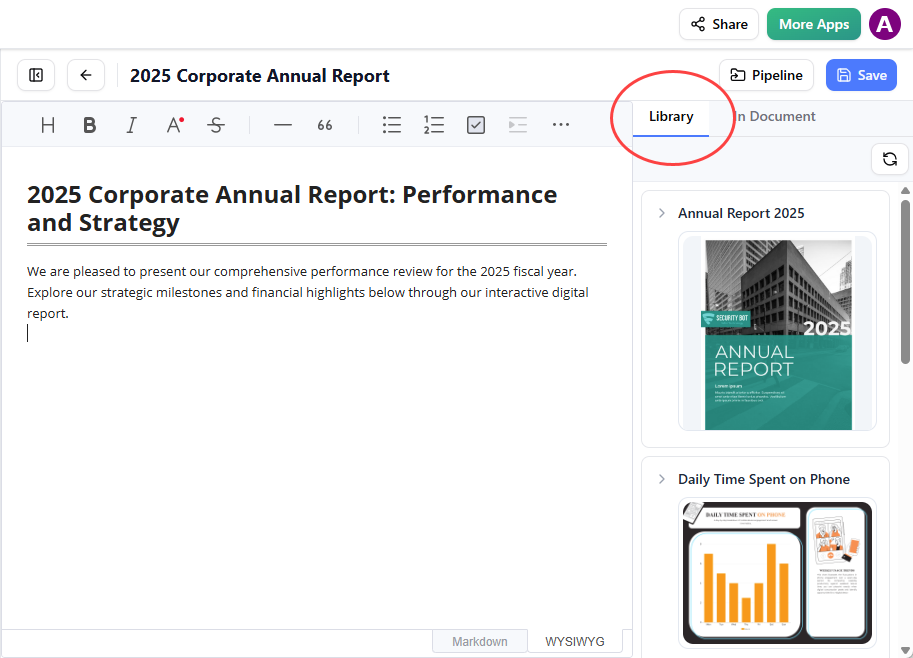
I opened the Library tab; I saw the flipbook I sent from VP Online.
-
I clicked on the flipbook to insert it.
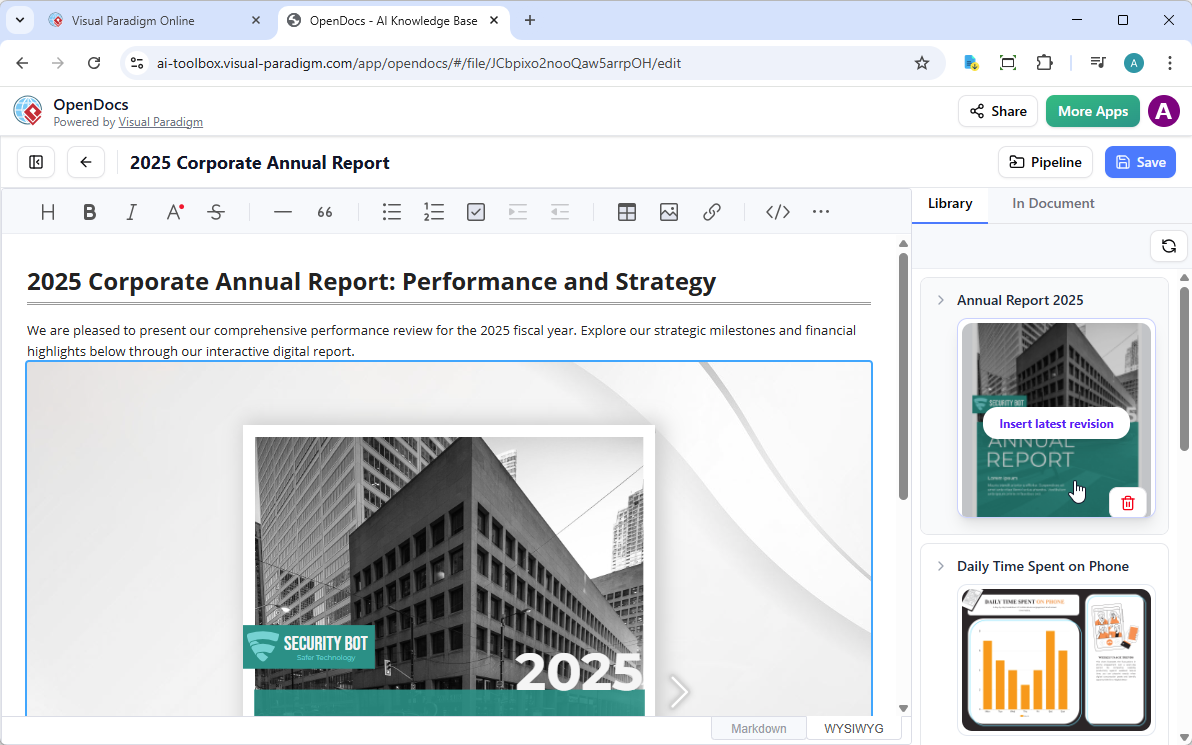
Tip: If the flipbook is added to the end of the page, select it and press Enter to create a new line and adjust the positioning.
Important Note: In Edit mode, the flipbook remains static. To interact with it, I had to save my changes and exit Edit mode. Once live, I could share the page or the entire space using the Share button in the top bar.
My Honest Assessment: Pros and Cons
What I Loved:
-
Seamless Integration: The Pipeline truly eliminates the friction between creation and documentation
-
Time Savings: Real-time synchronization means no more manual updates
-
Professional Output: Flipbooks add a level of polish that static PDFs simply can’t match
-
AI Assistance: The AI features genuinely help accelerate content creation
-
Mobile Responsiveness: Everything works well across devices
Areas for Improvement:
-
Subscription Requirements: You need Combo or Professional Edition, which may be a barrier for some users
-
Learning Curve: While intuitive, there’s still an initial setup and learning period
-
Edit Mode Limitation: The flipbook being static in edit mode can be confusing at first
Conclusion
After spending several months working with Visual Paradigm’s Pipeline and flipbook integration, I can confidently say this ecosystem addresses real pain points in modern documentation workflows. The ability to move seamlessly from diagram creation to documentation without downloading files, combined with the interactive flipbook capabilities, has genuinely improved how I create and share technical content.
For teams already using Visual Paradigm tools, the Pipeline feature feels like a natural evolution that should have existed years ago. The flipbook integration adds an extra layer of professionalism to documentation that clients and stakeholders appreciate. While the subscription requirement means it’s not for everyone, those with access to Combo or Professional editions will find significant value in this integrated approach.
The real-time synchronization alone has saved me countless hours of version management, and the AI-powered features continue to impress with their practical utility. If you’re tired of juggling multiple tools and wrestling with file versions, this ecosystem is worth exploring. It’s not perfect, but it’s a significant step forward in making visual documentation less painful and more engaging.
References
-
Visual Paradigm Pipeline Demo: Video demonstration of the Visual Paradigm Pipeline feature and workflow
-
Visual Paradigm Online to OpenDocs Export: Official release notes detailing the export functionality from VP Online to OpenDocs Pipeline
-
AI Diagram to OpenDocs Pipeline: Release information about AI-generated diagram integration with OpenDocs Pipeline
-
Pipeline Workflow Tutorial: Video tutorial demonstrating the complete Pipeline workflow process
-
Visual Paradigm Features Overview: Comprehensive list of Visual Paradigm product features and capabilities
-
Visual Paradigm Official Website: Main website with product information and resources
-
Diagram Examples Circle: Collection of diagram examples and templates for various use cases
-
Visual Paradigm User Guide: Official user documentation for Visual Paradigm features
-
Class Diagram Using Visio: Third-party resource comparing class diagram creation methods