
Now Reading: Complete Guide: AI-Assisted UML Class Diagram Generator
-
01
Complete Guide: AI-Assisted UML Class Diagram Generator


Complete Guide: AI-Assisted UML Class Diagram Generator
A User Experience Journey from Concept to Professional Design

🎯 Introduction: Your Journey Begins
Welcome to the AI-Assisted UML Class Diagram Generator – your gateway to professional software design without the complexity. This comprehensive guide will walk you through every step of your journey, from initial concept to polished, AI-analyzed diagrams.
Why This Tool?
Traditional UML diagramming requires:
-
Learning complex syntax (PlantUML)
-
Understanding intricate modeling rules
-
Hours of manual design work
Our solution eliminates these barriers with an intuitive wizard interface powered by AI assistance, making professional UML accessible to everyone.
🗺️ Your User Experience Journey
Phase 1: Discovery & Onboarding
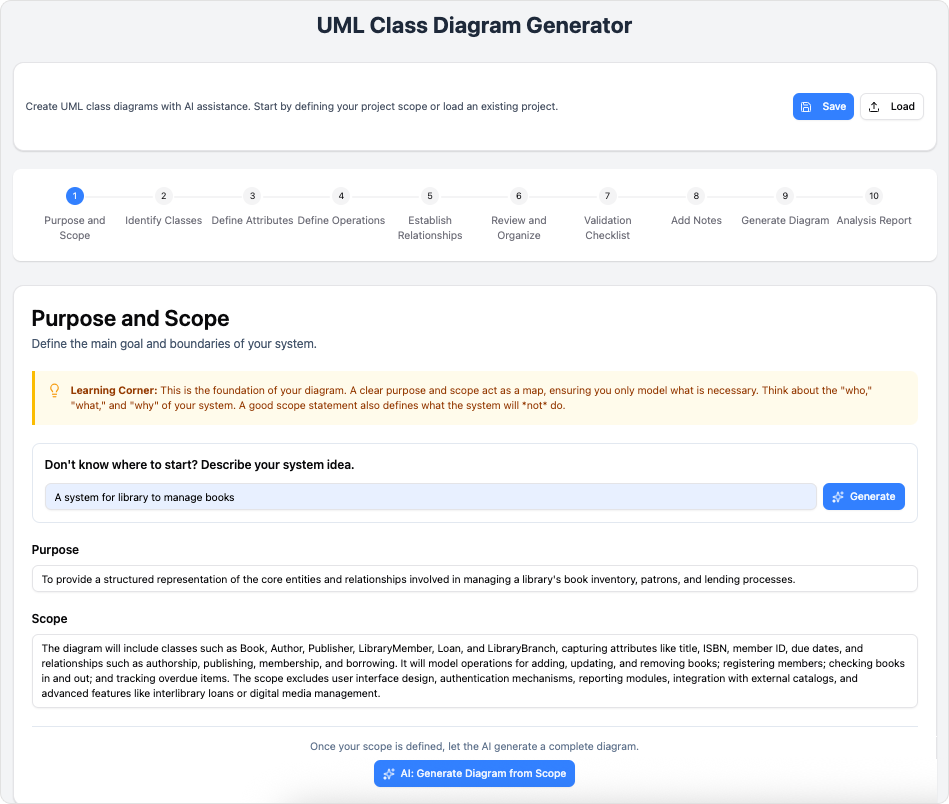
Step 1: Define Your Purpose and Scope
What You’ll Do:
-
Input your high-level system idea
-
Choose between manual entry or AI generation
-
Set the boundaries of your diagram
User Experience Tips:
-
Start broad: “Online bookstore system” or “Hospital patient management”
-
Let AI suggest scope if you’re unsure
-
Be specific about what’s in/out of scope
AI Assistance Available:
-
Auto-generate purpose statements
-
Suggest comprehensive scope based on your idea
-
Provide industry-standard examples
Phase 2: Building Your Foundation
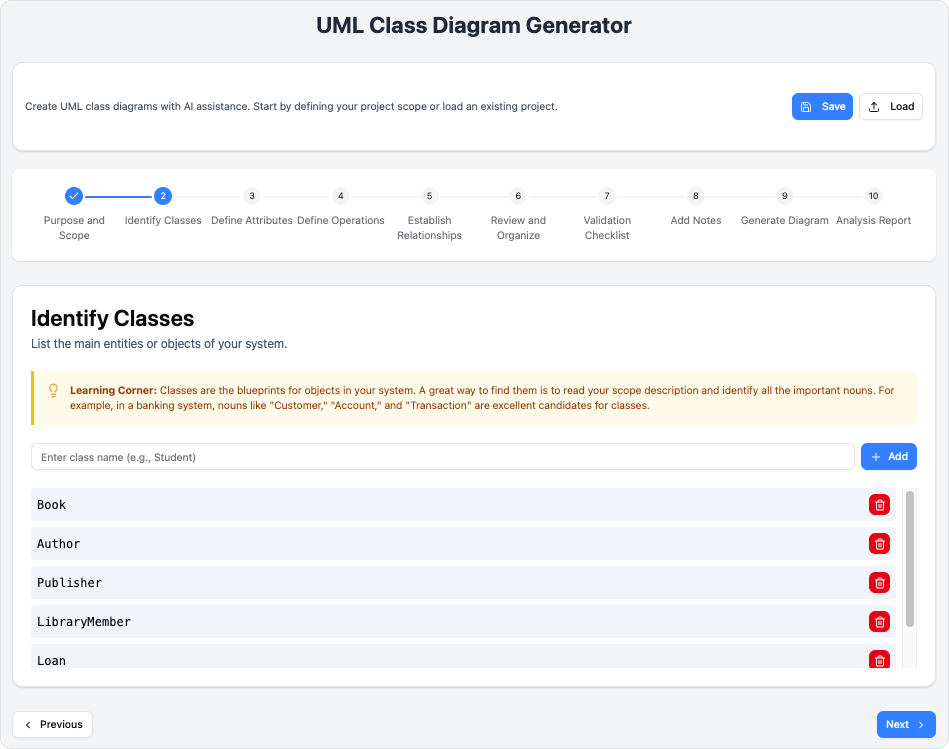
Step 2: Identify Your Classes
What You’ll Do:
-
List all major entities in your system
-
Name classes using proper conventions
-
Organize classes logically
Best Practices:
-
Use nouns for class names (Customer, Order, Product)
-
Think about real-world objects and concepts
-
Consider both data holders and service providers
AI-Powered Help:
-
Suggest missing classes based on your domain
-
Validate naming conventions
-
Identify relationships between classes
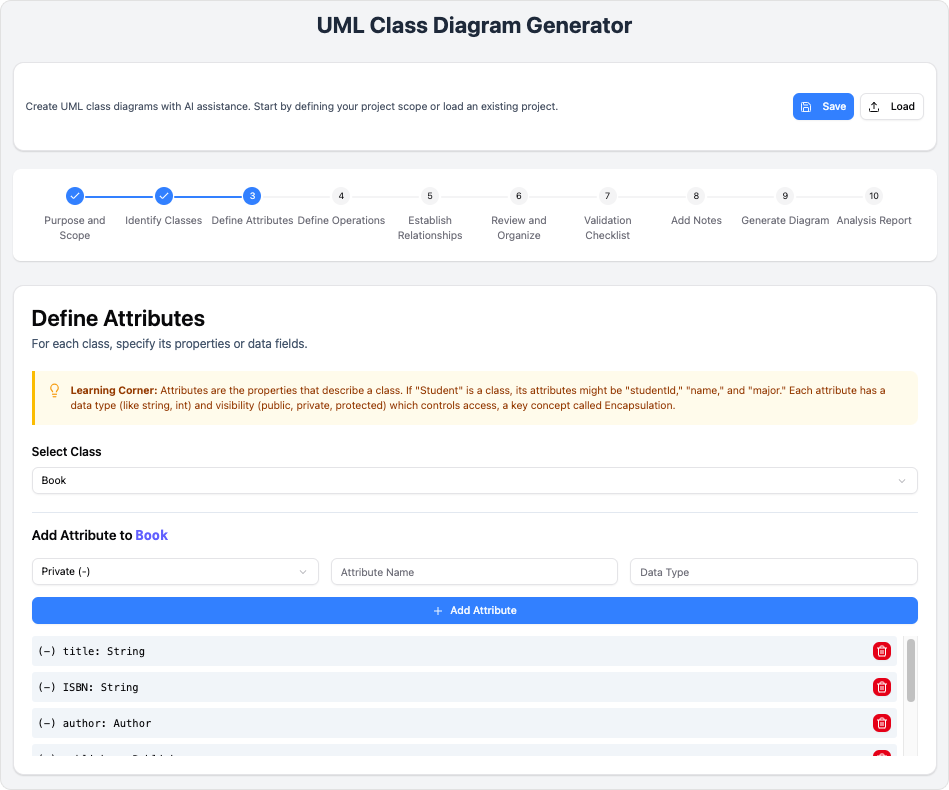
Step 3: Define Class Attributes
What You’ll Do:
-
Specify properties for each class
-
Assign appropriate data types
-
Set visibility (public, private, protected)
User Experience Flow:
-
Select a class from your list
-
Add attributes one by one
-
Choose data types from dropdown or enter custom
-
Mark attributes as required or optional
Pro Tips:
-
Keep attributes focused and relevant
-
Use appropriate data types (String, Integer, Date, Boolean)
-
Follow encapsulation principles
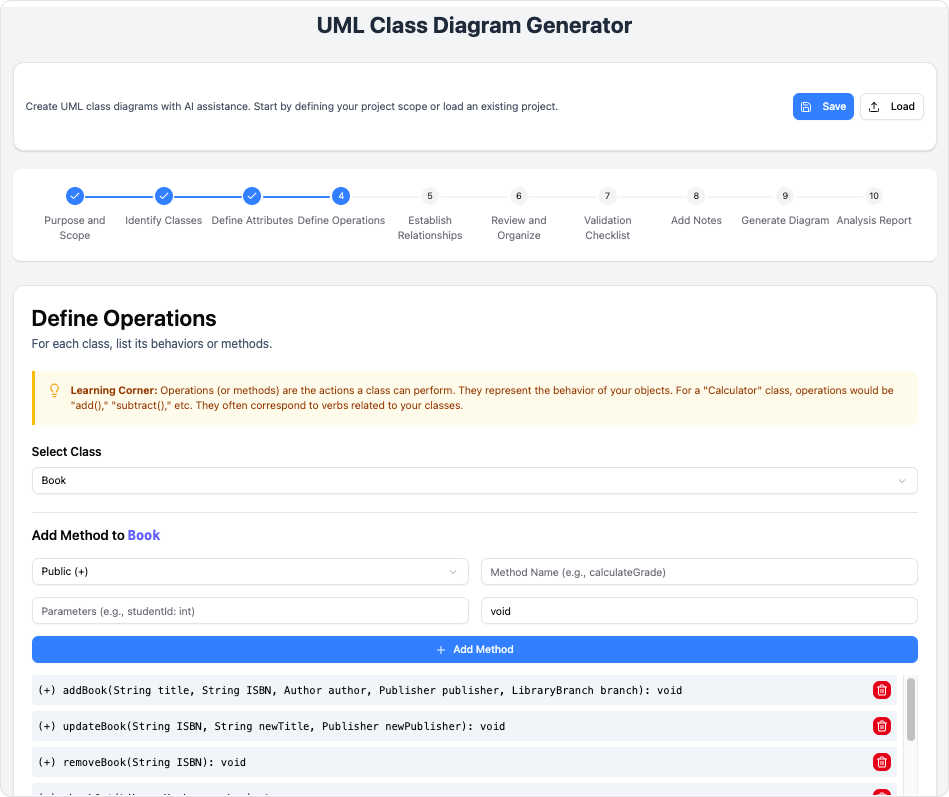
Step 4: Define Operations (Methods)
What You’ll Do:
-
List behaviors and actions for each class
-
Define method signatures
-
Specify return types and parameters
Guided Process:
-
Think: “What can this object do?”
-
Add CRUD operations (Create, Read, Update, Delete)
-
Include business logic methods
AI Suggestions:
-
Common methods for your class types
-
Parameter recommendations
-
Return type validation
Phase 3: Creating Connections
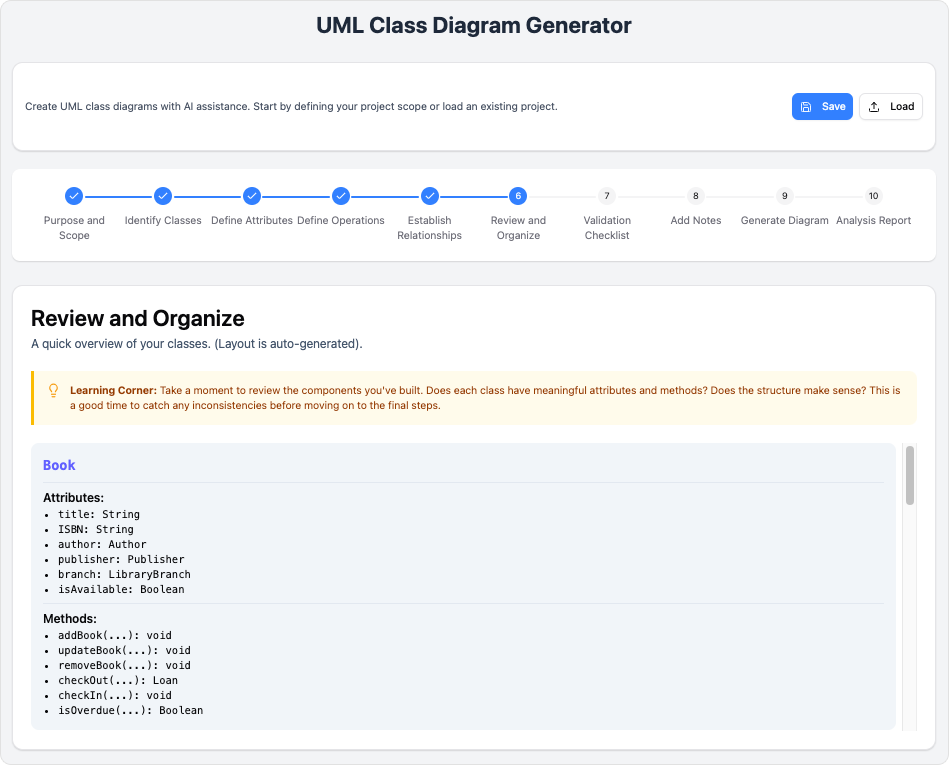
Step 5: Establish Relationships
What You’ll Do:
-
Connect related classes
-
Choose relationship types:
-
Association: General connection
-
Inheritance: “Is-a” relationship
-
Composition: “Has-a” (strong ownership)
-
Aggregation: “Has-a” (weak ownership)
-
Dependency: “Uses” relationship
-
Visual Interface:
-
Drag and drop to connect classes
-
Select relationship type from menu
-
Add multiplicity (1, *, 0..1, etc.)
-
Label relationships clearly
AI Validation:
-
Detect missing relationships
-
Suggest appropriate relationship types
-
Flag potential design issues
Phase 4: Refinement & Quality Assurance
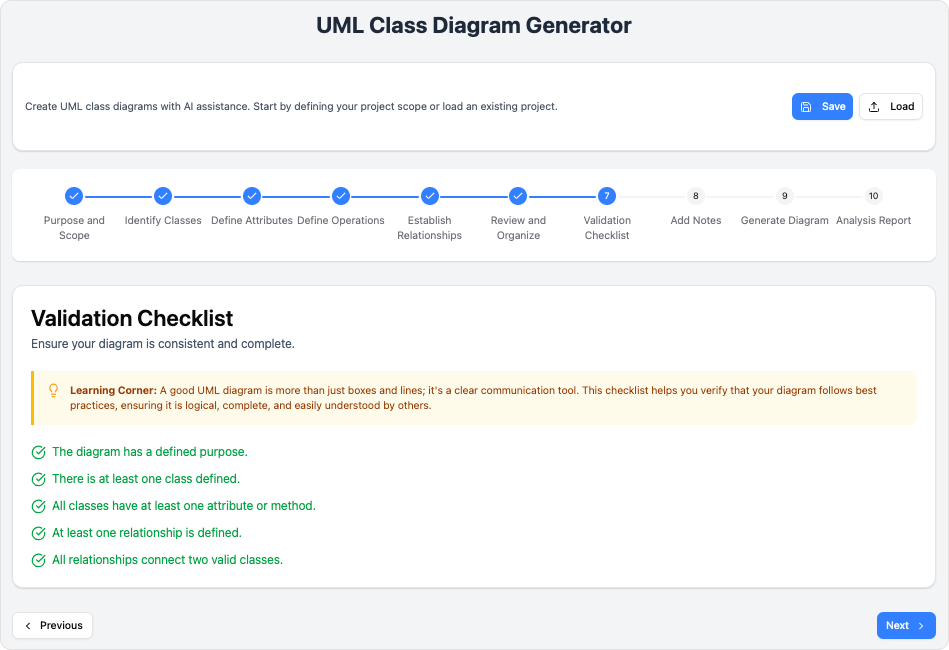
Step 6: Review and Organize
What You’ll Do:
-
Consolidate all elements
-
Check for consistency
-
Organize layout for clarity
Review Checklist:
-
✓ All classes properly named
-
✓ Attributes have correct types
-
✓ Operations are complete
-
✓ Relationships are accurate
-
✓ Diagram is readable
Step 7: Validation Checklist
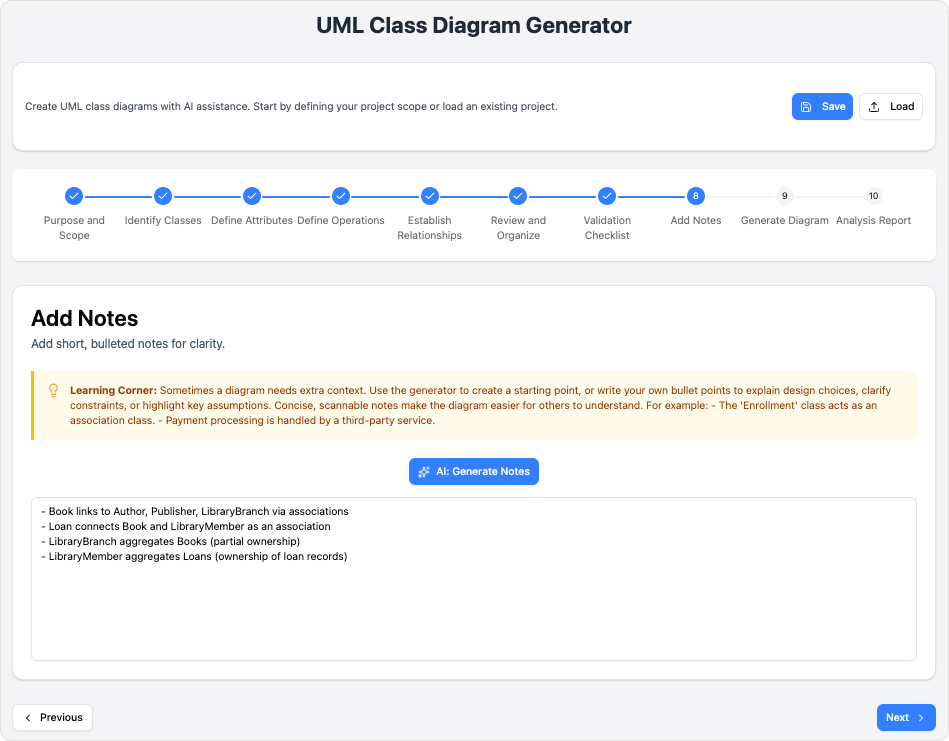
Automated Best Practice Checks:
-
Naming convention compliance
-
Completeness of class definitions
-
Relationship validity
-
UML standard adherence
-
Design pattern recommendations
Fix Issues:
-
One-click corrections for common problems
-
Detailed explanations for each issue
-
Suggestions for improvements
Phase 5: Documentation & Analysis
Step 8: Add Notes and Documentation

What You’ll Do:
-
Add clarifying notes to elements
-
Document design decisions
-
Create summary descriptions
AI-Powered Documentation:
-
Auto-generate comprehensive notes
-
Create design rationale summaries
-
Suggest missing documentation
Benefits:
-
Improves team communication
-
Aids future maintenance
-
Supports educational purposes
Step 9: Generate and Export Diagram
What You’ll Get:
-
Visual SVG Diagram: Professional rendering
-
PlantUML Code: Editable text format
-
Multiple Export Options:
-
JSON (for saving/loading projects)
-
PUML (PlantUML format)
-
SVG (scalable vector graphics)
-
PNG/JPG (image formats)
-
Customization Options:
-
Adjust colors and styles
-
Modify layout and spacing
-
Edit raw code for advanced users
Step 10: AI Analysis Report
The Final Quality Check:
Receive a comprehensive AI-powered analysis including:
Design Quality Assessment:
-
Architectural soundness
-
Maintainability score
-
Scalability considerations
-
Best practice compliance
Improvement Suggestions:
-
Specific recommendations
-
Alternative design patterns
-
Performance considerations
-
Security implications
Educational Insights:
-
Explanation of design choices
-
Learning resources
-
Industry standards references
🎓 Learning Journey: Who Benefits?
Students & Educators
-
Learn: Step-by-step guidance with educational tips
-
Teach: Demonstrate UML concepts visually
-
Practice: Safe environment to experiment
Professional Developers
-
Speed: Rapid prototyping and design
-
Quality: AI-powered best practice enforcement
-
Collaboration: Easy sharing and documentation
Business Analysts
-
Clarity: Visual representation of requirements
-
Validation: Ensure designs meet business needs
-
Communication: Bridge technical and non-technical stakeholders
Technical Writers
-
Accuracy: Generate precise documentation
-
Visuals: Professional diagrams for manuals
-
Consistency: Maintain standards across documents
💡 Pro Tips for Your Journey
Getting Started
-
Start with a broad scope, then refine
-
Use AI generation for initial drafts
-
Don’t skip the validation step
During Design
-
Think in terms of real-world objects
-
Keep classes focused and single-purpose
-
Document as you go, not at the end
Before Export
-
Run the full validation checklist
-
Review AI analysis report
-
Add comprehensive notes
For Collaboration
-
Save projects in JSON format
-
Export SVG for presentations
-
Include analysis reports in documentation
🔧 Advanced Features
Code Integration
-
Export to PlantUML for version control
-
Integrate with development workflows
-
Generate code skeletons
Project Management
-
Save and load projects
-
Version history tracking
-
Team collaboration features
Educational Mode
-
Detailed explanations for each element
-
UML standard references
-
Best practice tutorials
📊 Success Metrics
Track your design quality with:
-
Completeness Score: Are all elements defined?
-
Consistency Rating: Do relationships make sense?
-
Best Practice Adherence: Following UML standards?
-
AI Quality Score: Overall design assessment
🚀 Ready to Start Your Journey?
Launch the AI-Assisted UML Class Diagram Generator
No installation required. No syntax to learn. Just your ideas and AI-powered guidance.
📚 Reference Resources
Enterprise Architecture
-
ArchiMate® 3 (Certified): Enterprise architecture modeling with certified ArchiMate 3 support
-
DoDAF: Department of Defense Architecture Framework modeling tools
-
NAF: NATO Architecture Framework compliant modeling
-
MODAF: Ministry of Defence Architecture Framework tools
-
TOGAF® ADM Guide-Through: Complete TOGAF Architecture Development Method guidance
-
TOGAF® ADM Process-Map: Just-in-time TOGAF templates and process mapping
Project Management
-
PMBOK® Process Map: PMI’s PMBOK guide templates and process mapping
-
Project Management Guide-Through: Complete project management lifecycle guidance
-
Project Management Process Map: Just-in-time project management templates
Visual Modeling
-
UML Tool: Comprehensive Unified Modeling Language diagramming
-
SysML Tool: Systems Modeling Language for systems engineering
-
ER Diagram Tool: Entity-Relationship diagrams for database design
-
DFD Tool: Data Flow Diagrams for system analysis
Agile & Scrum
-
User Story Map: Agile user story mapping and backlog management
-
Scrum Process Canvas: Visual Scrum process modeling and planning
-
LeSS Canvas: Large-Scale Scrum framework tools
-
Nexus Canvas: Nexus framework for scaled Scrum
Business Modeling
-
BPMN Diagrams: Business Process Model and Notation diagramming
-
Decision Table: Business rule modeling with decision tables
-
Organization Chart: Organizational structure visualization
-
CMMN Tool: Case Management Model and Notation
User Experience Design
-
Wireframe & Storyboard: Low-fidelity wireframing and storyboarding
-
Wireflow Diagram: User flow visualization with wireframes
-
Prototyping Tool: Interactive prototyping capabilities
-
Customer Journey Map: End-to-end customer experience mapping
-
High-Fidelity Mockup Tool: Detailed UI/UX mockup creation
Visual Diagramming
-
Flowchart Maker: Professional flowchart creation tools
-
Chart Maker: Various chart types for data visualization
Code Engineering
-
Code Engineering: Forward and reverse engineering for multiple languages
-
Visual REST API Designer: Visual RESTful API design and documentation
-
DB Generation & Reversal: Database schema generation and reverse engineering
-
Hibernate ORM: Hibernate object-relational mapping tools
Team Collaboration
-
Collaboration Tools: Real-time team collaboration features
-
Task Management: Integrated task and work management
-
Review and Commenting: Design review and feedback system
Analysis & Charting
-
Textual Analysis: Extract models from text documents
-
Relationship Matrix: Impact analysis with relationship matrices
-
Analysis Diagram: Dependency and impact analysis diagrams
-
RACI & CRUD: Responsibility assignment and data operation matrices
Advanced Modeling Tools
-
Project Glossary: Centralized glossary and terminology management
-
On-Demand Model ETL: Model extraction, transformation, and loading
-
Other Advanced Modeling Tools: Additional advanced modeling capabilities
Project Management Diagrams
-
Enhanced PERT Chart: Program Evaluation Review Technique charts
-
Work Breakdown Structure: WBS diagram creation and management
-
Cause & Effect Diagram: Fishbone/Ishikawa diagram tools
-
Gantt Chart Tool: Project scheduling with Gantt charts
🎉 Conclusion: Your Journey Continues
The AI-Assisted UML Class Diagram Generator is more than just a tool—it’s your companion in creating professional, well-analyzed software designs. Whether you’re a student learning UML for the first time or a seasoned architect validating complex systems, this guided journey ensures quality, efficiency, and continuous learning.
Start your journey today and experience the future of software design!
This guide follows a user experience journey approach, taking you from initial discovery through to professional diagram creation and analysis. Each phase builds upon the previous, ensuring a smooth learning curve and professional results.