


Data Flow Diagrams (DFDs) are essential tools in systems analysis and design, offering a clear visual representation of how data moves through a system. They help stakeholders understand processes, identify bottlenecks, and ensure data integrity across components. With the latest update to Visual Paradigm, users now have access to an AI-powered DFD generator via the AI Chatbot—making diagram creation faster, more intuitive, and accessible even to those new to systems modeling.
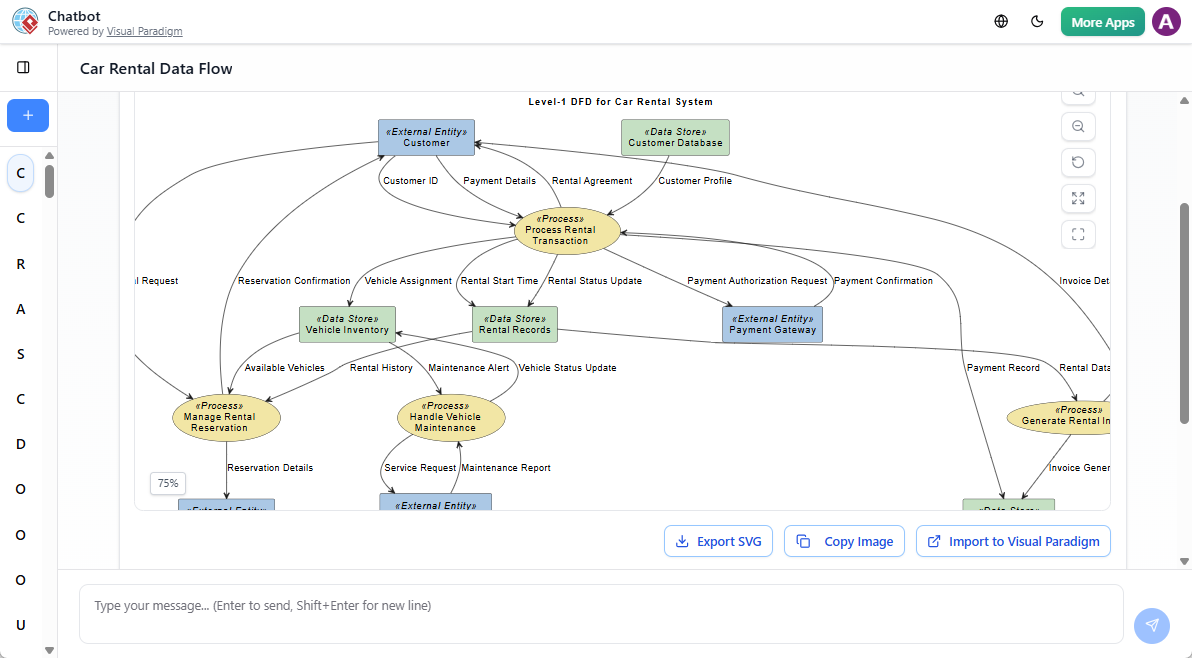
This guide walks you through the full workflow of generating a high-quality Level 1 DFD using Visual Paradigm’s AI capabilities. Whether you’re a student, systems analyst, or software designer, you’ll learn how to leverage AI to produce accurate, well-structured diagrams that align with best practices in data flow modeling.
What Is a Level 1 DFD?
A Level 1 DFD (also known as a first-level or detailed DFD) breaks down the main system from a Level 0 (Context) diagram into its core internal processes. While a Level 0 shows the system as a single process interacting with external entities, Level 1 reveals the primary subprocesses that make up the system—each handling a distinct part of the data flow.
Key elements in a Level 1 DFD include:
- Processes: Functional units that transform data (e.g., “Validate User Login”).
- Data Flows: Arrows showing the movement of data between processes, entities, and data stores.
- Data Stores: Persistent repositories where data is held (e.g., “Customer Database”).
- External Entities: Actors outside the system that send or receive data (e.g., “Customer”, “Payment Gateway”).
A well-constructed Level 1 DFD balances detail and readability—typically containing 3 to 7 key processes to avoid clutter while providing meaningful insight.
Introducing Visual Paradigm’s AI Chatbot for DFDs
Visual Paradigm’s AI Chatbot, launched in early 2026, integrates directly into the desktop application to assist with diagram generation. It supports natural language input, enabling users to describe a system in plain English and receive a fully structured DFD in seconds.
Key Features:
- Instant DFD Generation: Type a description and get a visual diagram without manual drawing.
- Conversational Refinement: Ask to “add a data store for order history” or “rename ‘Process Payment’ to ‘Verify Payment’”—the AI adjusts in real time.
- Smart Validation: The tool checks for consistency, such as ensuring all data flows have valid sources and sinks.
- Query-Driven Analysis: Ask questions like “Which processes use customer data?” or “Where is order status stored?” to explore the diagram’s logic.
This functionality is ideal for rapid prototyping, classroom learning, or documentation during system design phases.
Step-by-Step: Generating a Level 1 DFD with AI
Step 1: Launch the AI Chatbot
Open Visual Paradigm Desktop (2026 Edition) and go to Tools > AI Diagram Generation. Select Data Flow Diagram from the options.
Step 2: Set the Diagram Level
In the AI settings, choose “First-Level (Level 1)” to ensure the output focuses on internal processes rather than a high-level context view.
Step 3: Craft a Precise Prompt
The quality of your DFD depends heavily on the clarity of your input. Use structured, descriptive language. Avoid vague terms like “handle orders” or “manage data.”
✅ Good Prompt Example:
“Generate a Level 1 DFD for an e-commerce order processing system. Include the following processes: ‘Verify Payment’, ‘Update Inventory’, ‘Generate Invoice’, and ‘Notify Warehouse’. Use data stores for ‘Products’, ‘Order History’, and ‘Customer Orders’. External entities should be ‘Customer’ and ‘Warehouse’. Ensure data flows are clearly labeled and consistent with standard DFD notation.”
This prompt provides:
- Clear system scope
- Specific processes
- Defined data stores and external entities
- Explicit request for labeling and consistency
Step 4: Review and Refine
After the AI generates the diagram, use the chat interface to fine-tune:
- Add missing flows (e.g., “Add a flow from ‘Update Inventory’ to ‘Order History’”).
- Rename processes using verb-noun format (e.g., “Process Payment” instead of “Payment”).
- Fix inconsistencies (e.g., a process with no inputs or outputs).
The AI remembers context, so you can continue refining iteratively.
Step 5: Import and Finalize
Once satisfied, click Import to embed the DFD into your project. You can now:
- Add documentation
- Export to PNG, SVG, or PDF
- Link to other diagrams (e.g., use case diagrams or ERDs)
Best Practices for a High-Quality Level 1 DFD
1. Align with Level 0 Inputs and Outputs
Ensure every data flow entering or leaving the Level 1 diagram matches the external flows in your Level 0 Context diagram. This maintains consistency and prevents modeling gaps.
2. Use Verb-Noun Process Names
Label processes with action-oriented phrases:
✅ “Verify Payment”
❌ “Payment Verification”
This improves clarity and aligns with standard DFD conventions.
3. Limit the Number of Processes
Stick to 3–7 core processes. Too many make the diagram hard to interpret; too few fail to provide meaningful decomposition.
4. Avoid Circular Data Flows
Ensure data flows don’t create loops without clear transformation. For example, a process shouldn’t output data that directly feeds back into itself without a change in state.
5. Label All Data Flows
Every arrow should carry a descriptive label (e.g., “Payment Confirmation”, “Order Details”). This prevents ambiguity and supports future maintenance.
6. Use Consistent Naming
Keep data store names as nouns (e.g., “Customer Database”, “Product Catalog”) and external entities as roles (e.g., “Customer”, “Supplier”).
Real-World Application: E-Commerce Order System
Let’s apply the above to a real example. Suppose you’re designing a system for an online retail platform. A well-structured Level 1 DFD would include:
- Processes:
- Verify Payment
- Update Inventory
- Generate Invoice
- Notify Warehouse
- Data Stores:
- Products
- Order History
- Customer Orders
- External Entities:
- Customer
- Warehouse
The data flows would show:
- Customer → “Submit Order” → Verify Payment
- Verify Payment → “Payment Approved” → Update Inventory
- Update Inventory → “Stock Updated” → Generate Invoice
- Generate Invoice → “Invoice Sent” → Customer
- Notify Warehouse → “Shipping Request” → Warehouse
This structure ensures logical progression and traceability.
Why This Matters in Practice
DFDs are not just academic exercises—they’re practical tools used in:
- Requirements gathering
- System documentation
- Software architecture planning
- Compliance and audit trails
By using AI to generate accurate Level 1 DFDs, teams reduce modeling time, minimize errors, and improve collaboration across stakeholders.
Final Thoughts
Visual Paradigm’s AI Chatbot transforms how we approach systems modeling. It doesn’t replace domain expertise—it enhances it. With the ability to generate, refine, and query DFDs using natural language, users can focus more on design logic and less on diagramming mechanics.
Whether you’re learning systems analysis or designing enterprise software, this tool offers a powerful way to visualize data flows with precision and speed.
Would you like a sample prompt tailored to your specific project—like a hospital management system, banking portal, or student enrollment platform? Just share your use case, and I’ll help you craft a targeted AI input.
📌 Pro Tip: Always validate your AI-generated DFD against real-world data flows. The AI is a co-pilot, not a replacement for critical thinking.